

How to use Sunflower AI with ProPresenter
Use ProPresenter Props to overlay Sunflower AI captions on your slides.
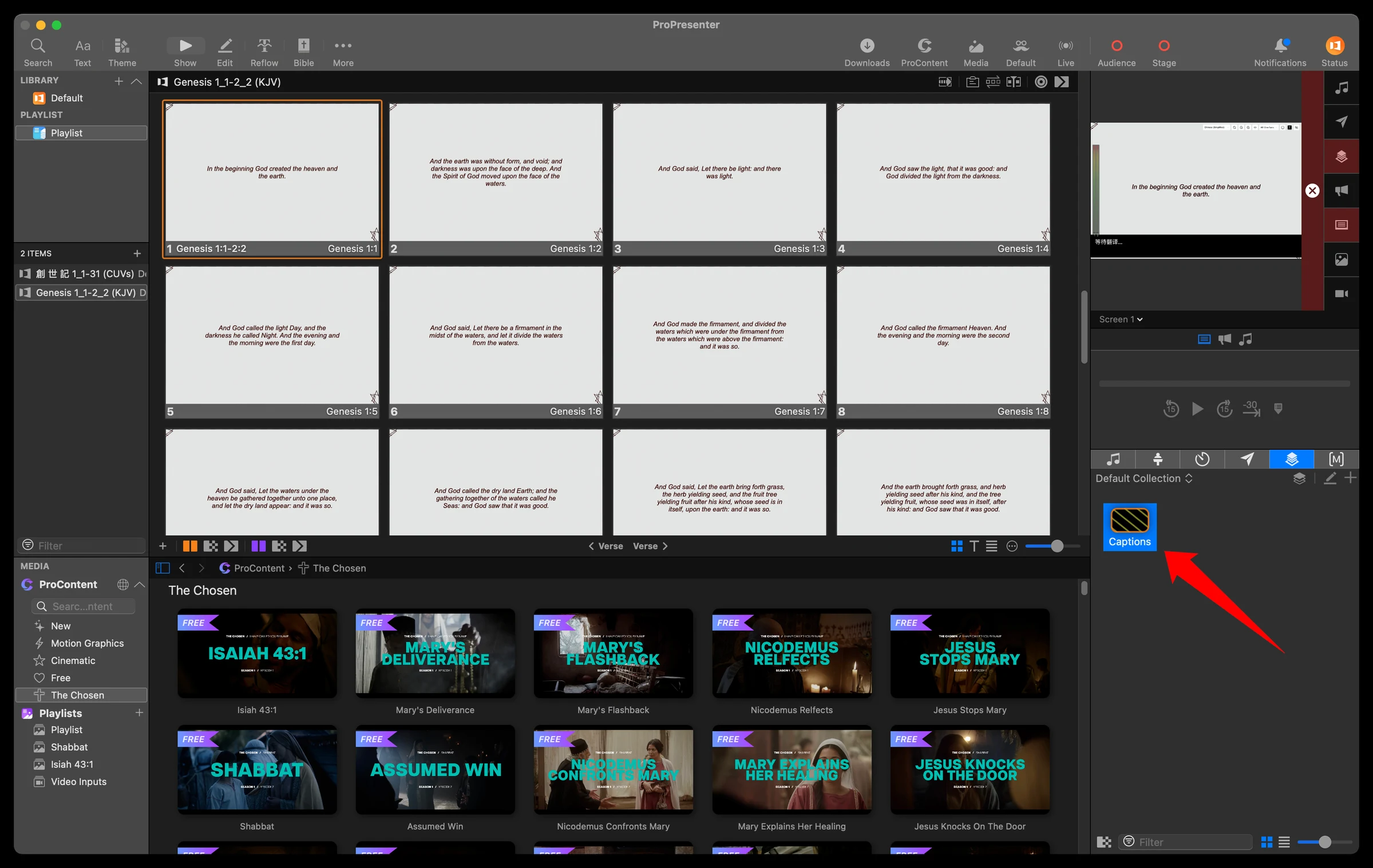
Copy caption URL from Sunflower AI
Step 1: Click “Caption View” from the “Captions & Translations” drop-down menu
This shows the captions page.
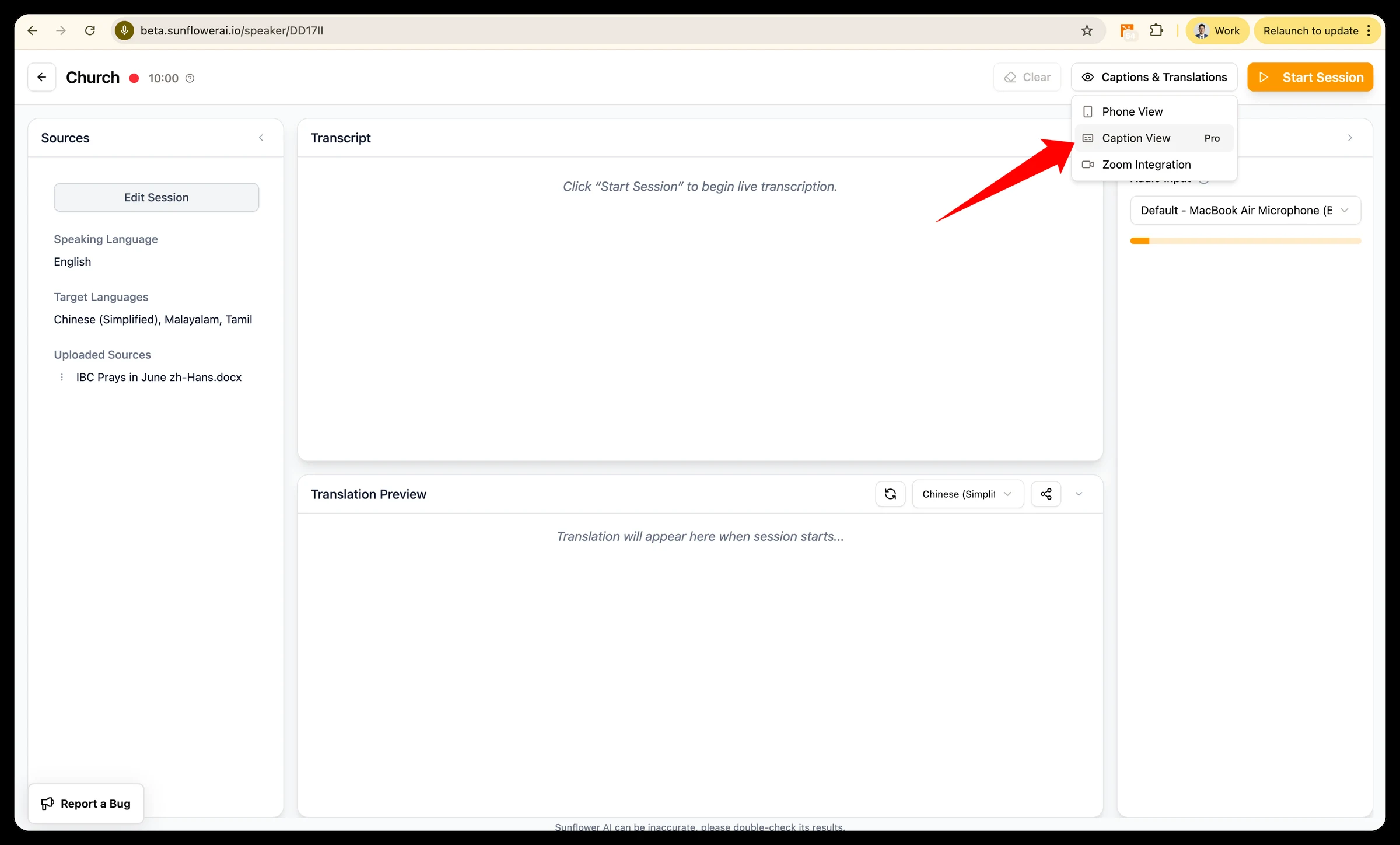
Step 2: Select language and copy the URL
Optionally edit the format for your use case, then copy the URL. (The URL has the parameters remembering your edit preference.)
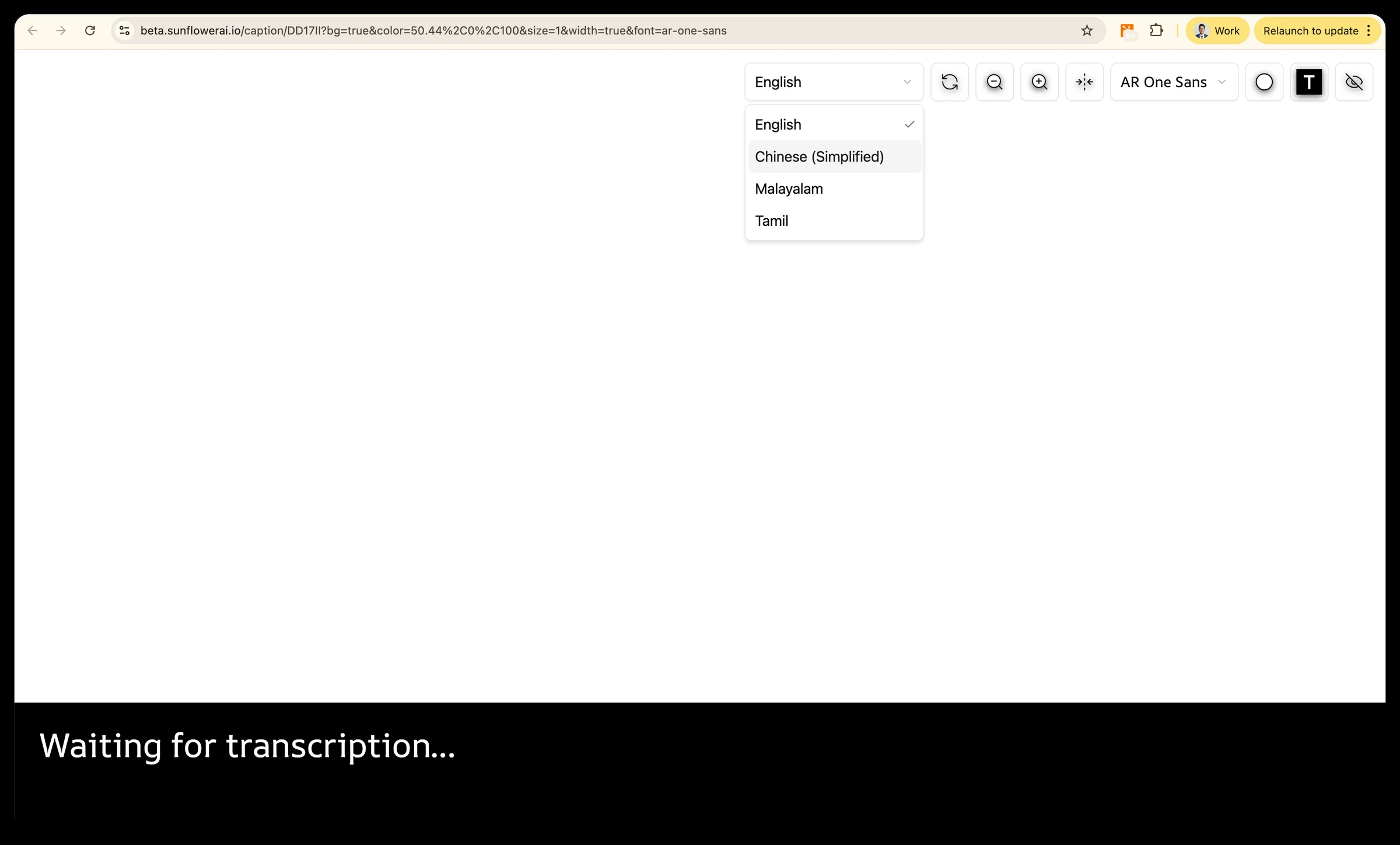
Use ProPresenter Props to overlay captions
Props allow your captions to persist across multiple slides and can be loaded / cleared separately.
Step 1: Create a new prop in “Props Editor”
In ProPresenter, create a new prop via Props Editor and give it a label like Captions.
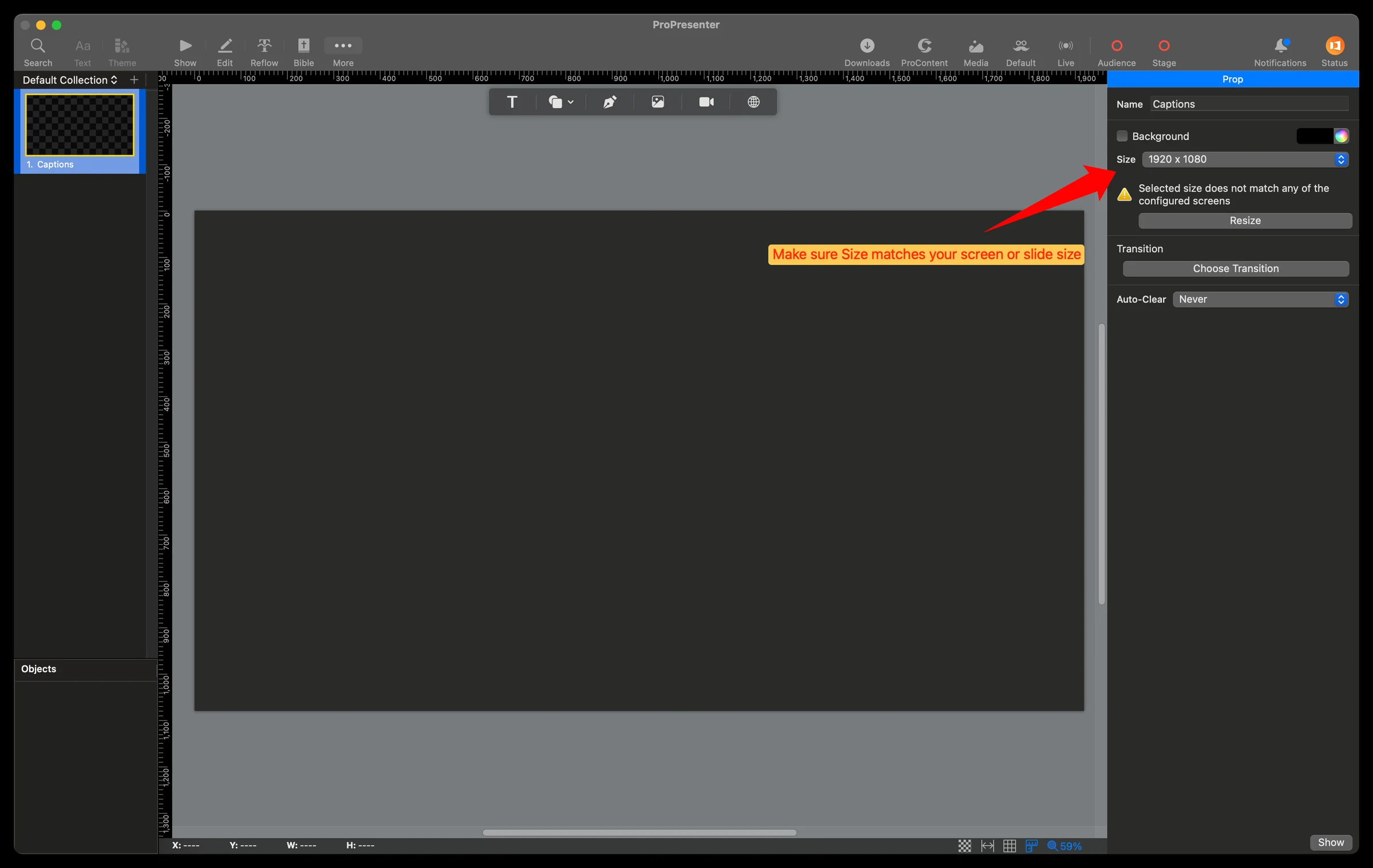
Step 2: Make sure “Size” matches your screen
Step 3: Insert a “Web Object”
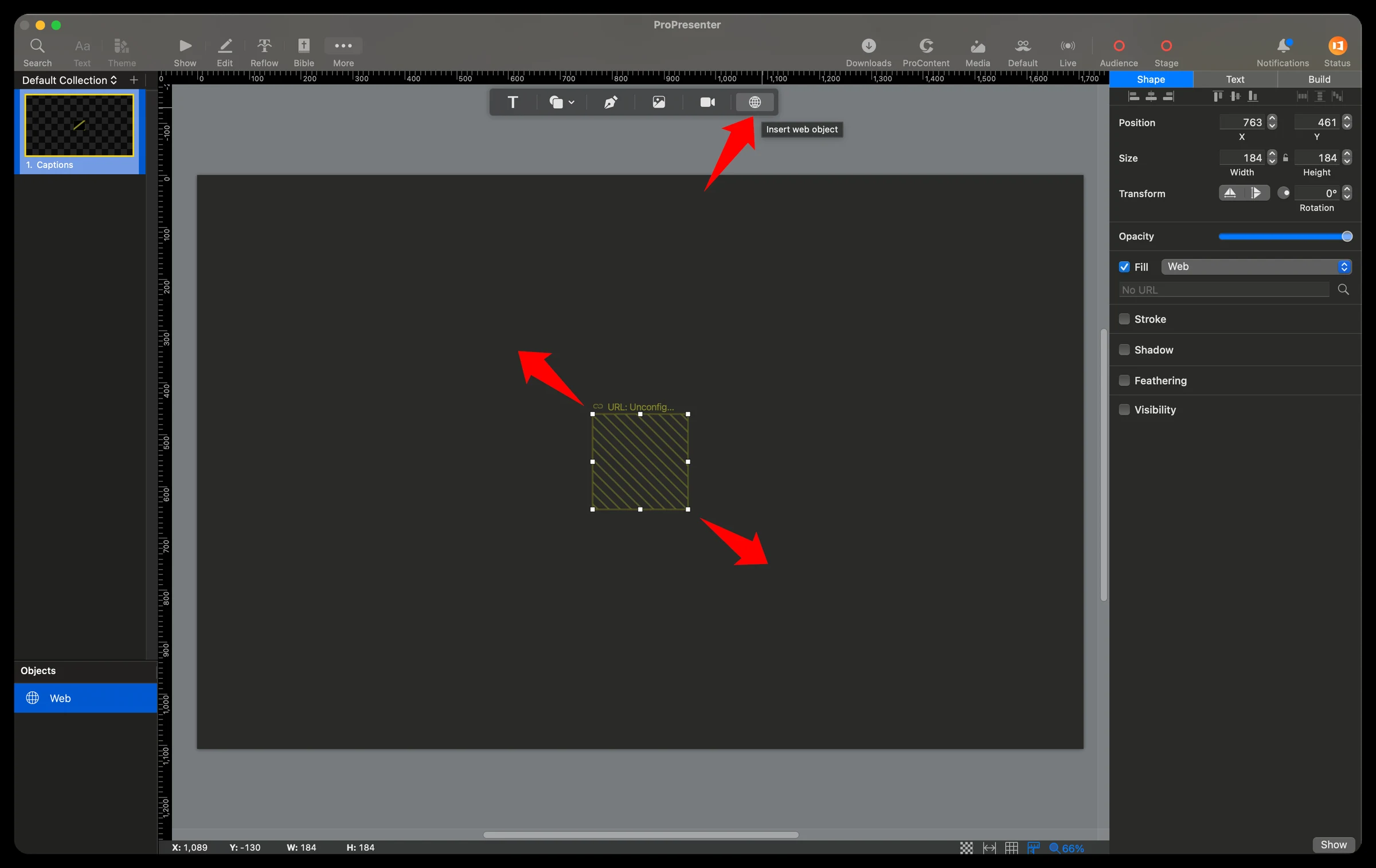
Insert a Web Object, then grab the corner and resize the block to fit the full size of the slide.
Step 4: Paste the caption URL
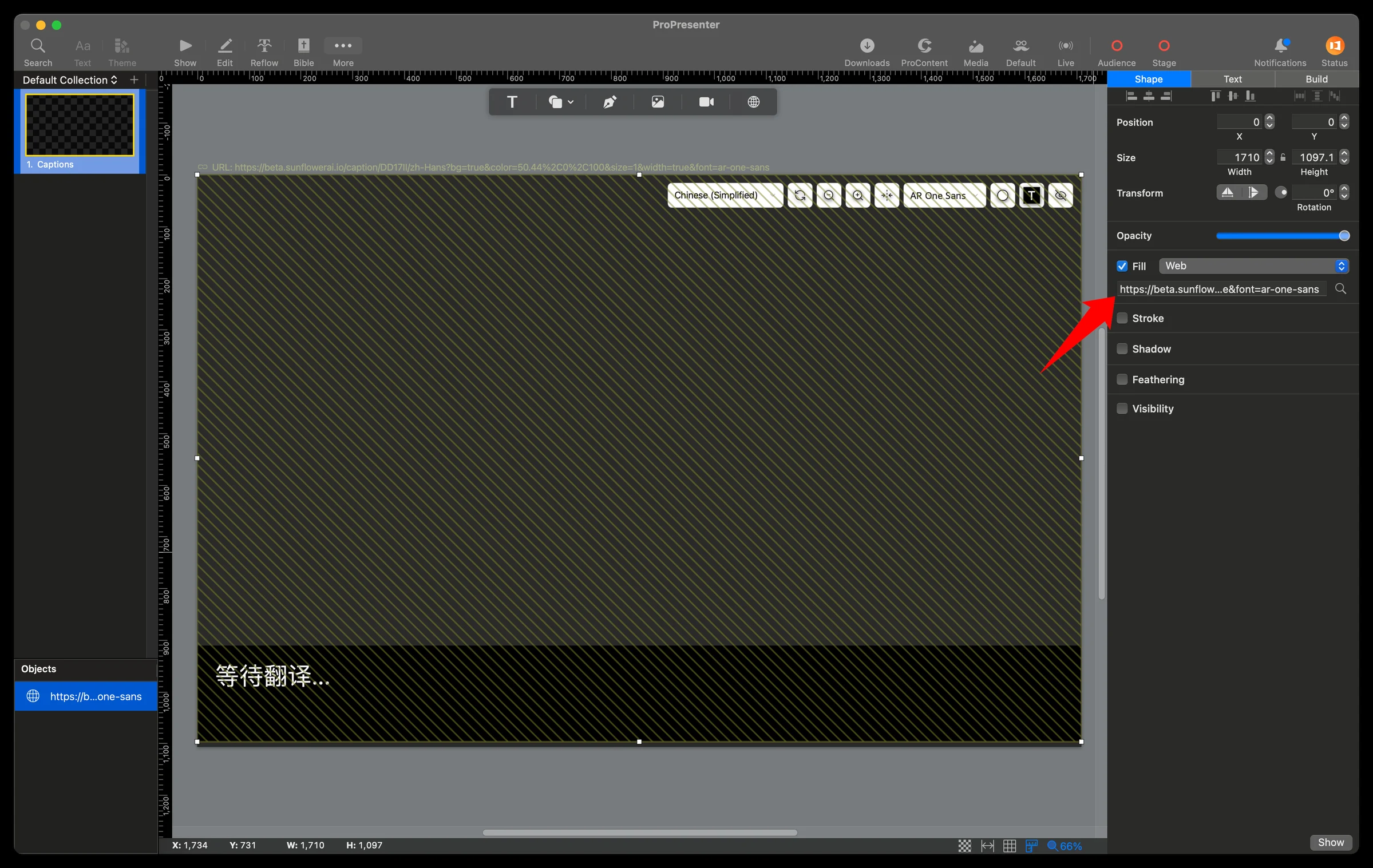
In the right-hand sidebar, paste the caption URL you copied earlier from Sunflower AI into the URL field, below the Web dropdown. After a moment, your caption display will load. (The edit header from the URL will be auto-hidden when captions start running.)
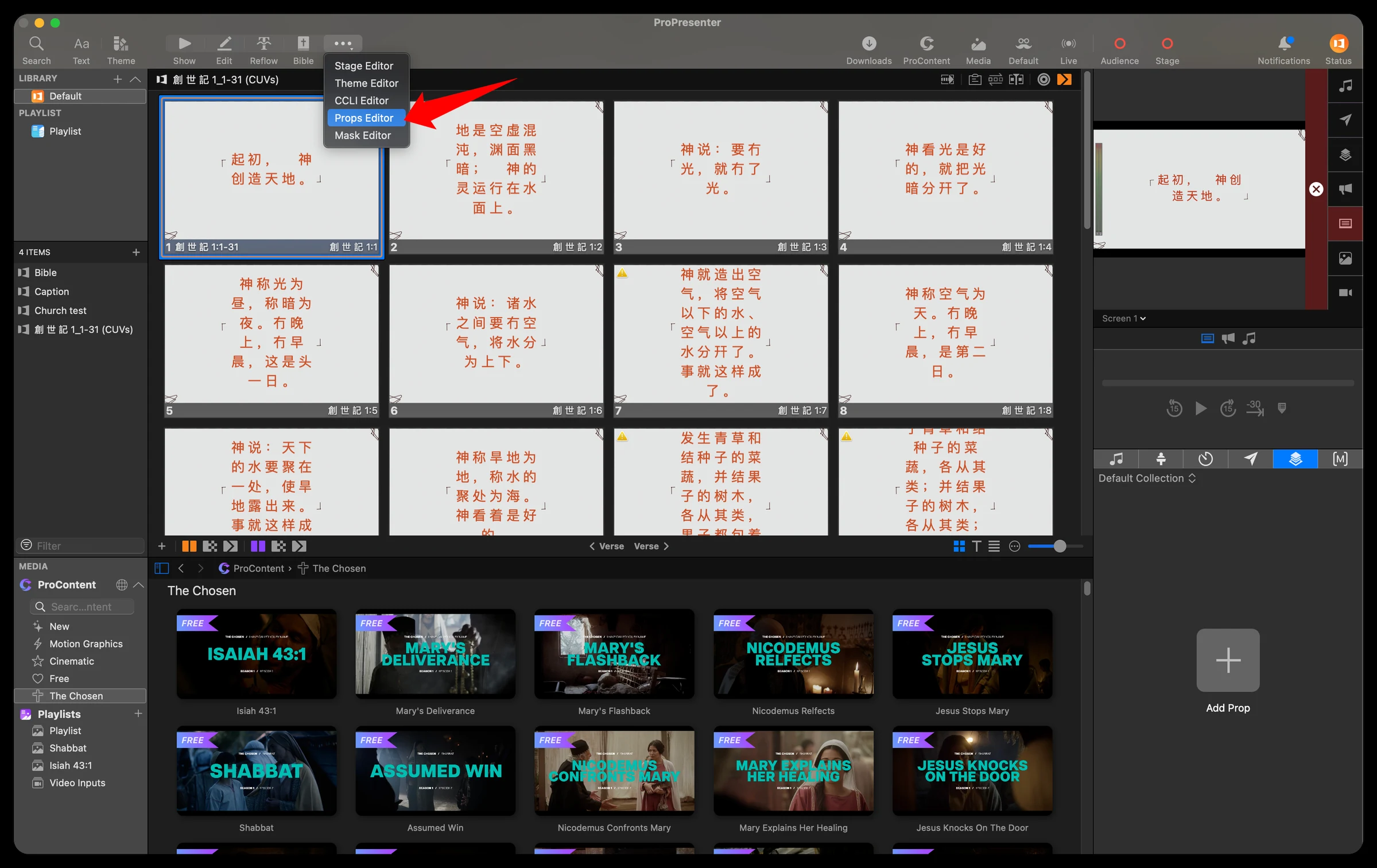
Step 5: Click the “Captions” layer to load captions
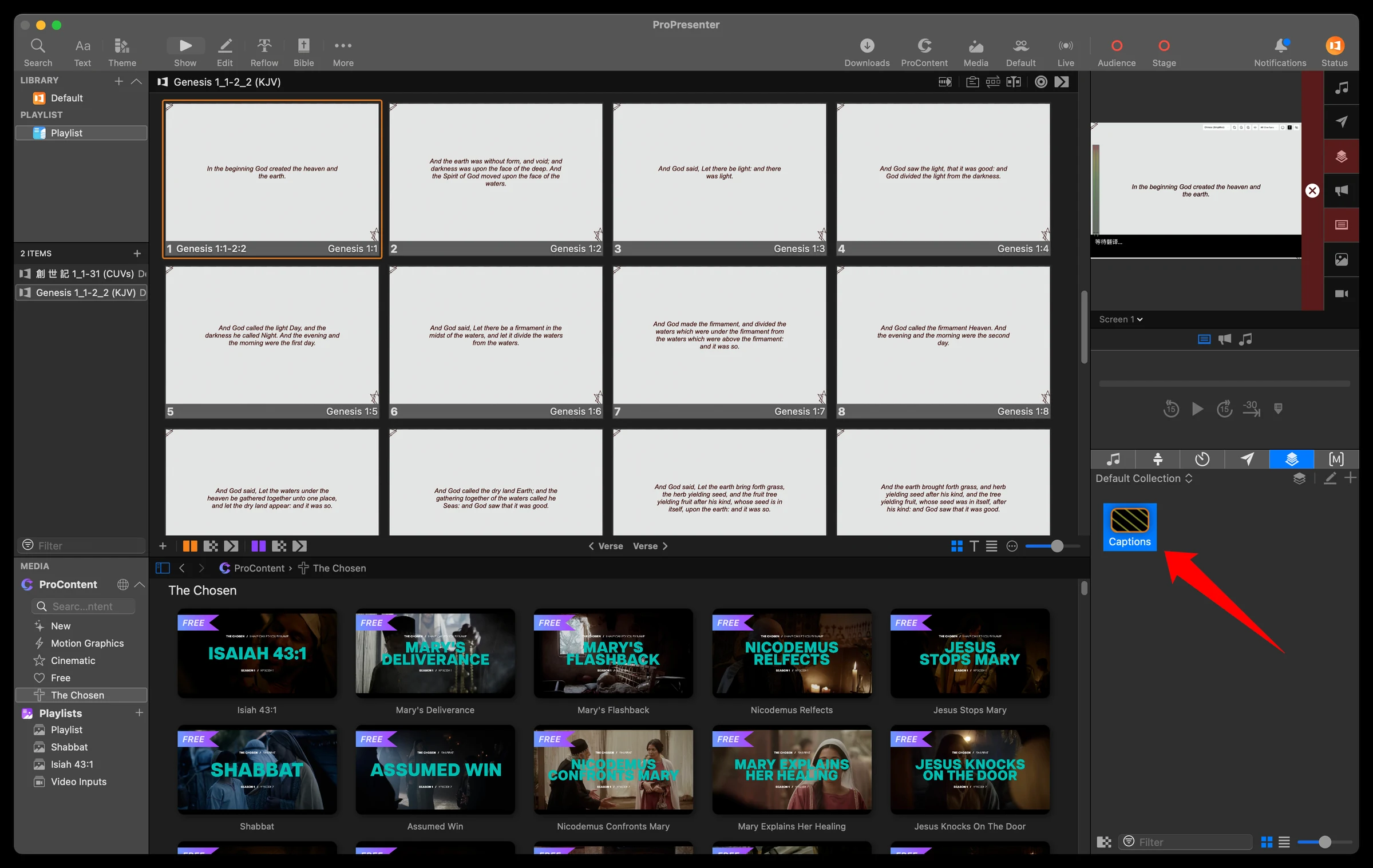
Load captions onto your current presentation by clicking the Captions layer.
Need a hand?
Contact support@sunflowerai.io if you need help. You can also join our Facebook group for feature requests and updates.