

Overlay Sunflower AI live captions on PowerPoint slides
Capture your PowerPoint slide show in OBS, overlay Sunflower AI captions, and send the combined picture to your projector. 23 steps, around two minutes.

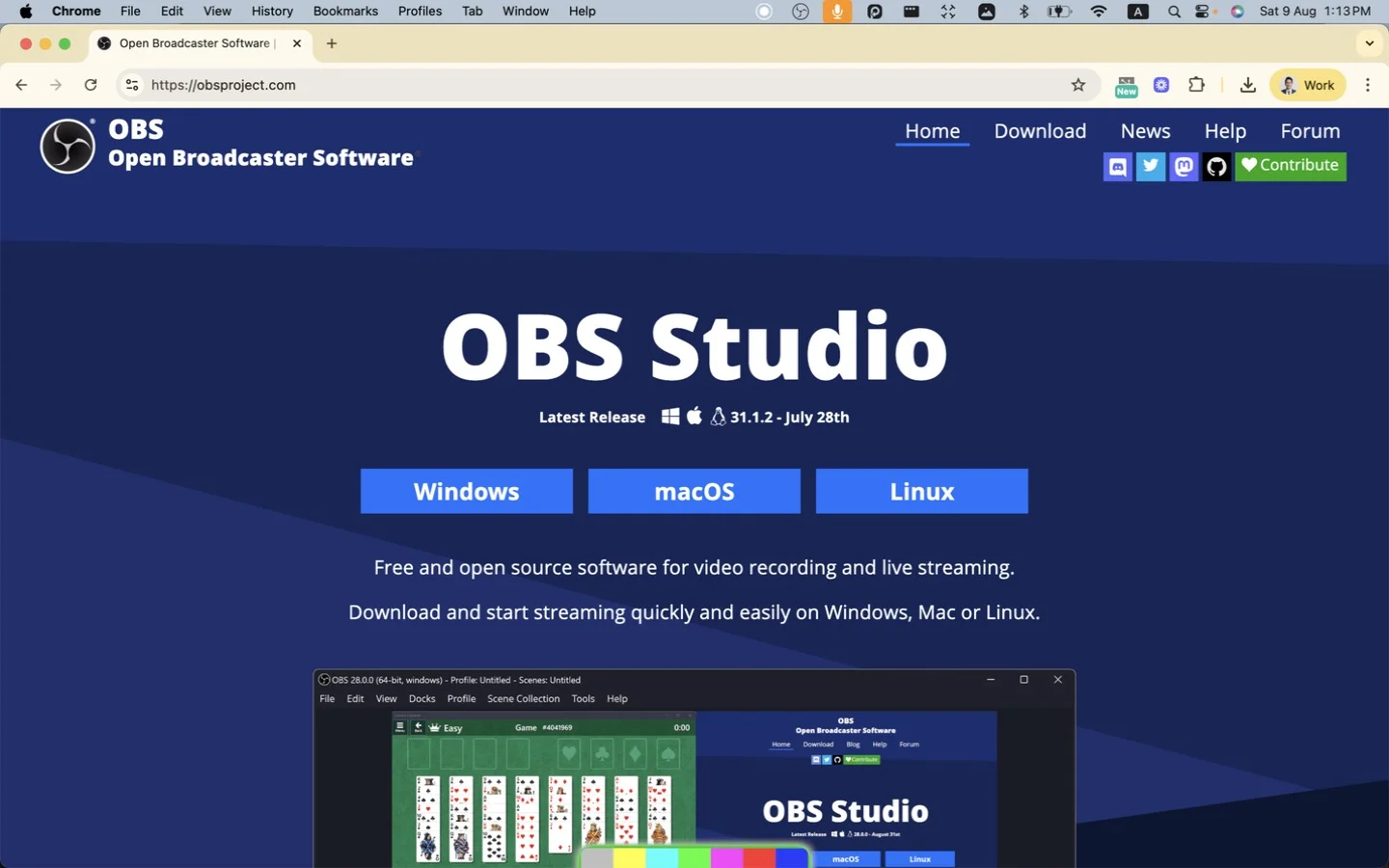
Step 1: Download OBS
From obsproject.com.
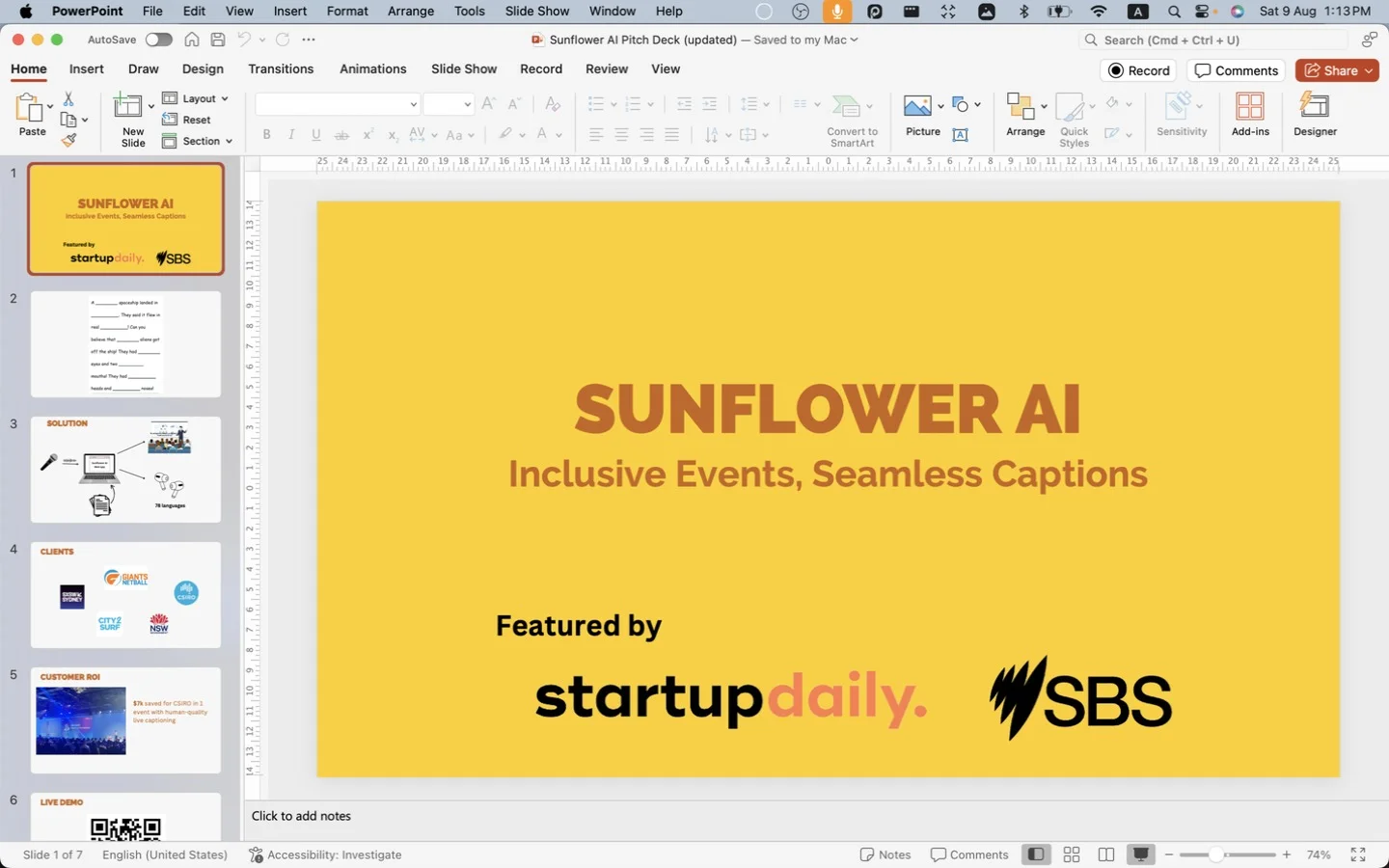
Step 2: Click “Slide Show” in PowerPoint
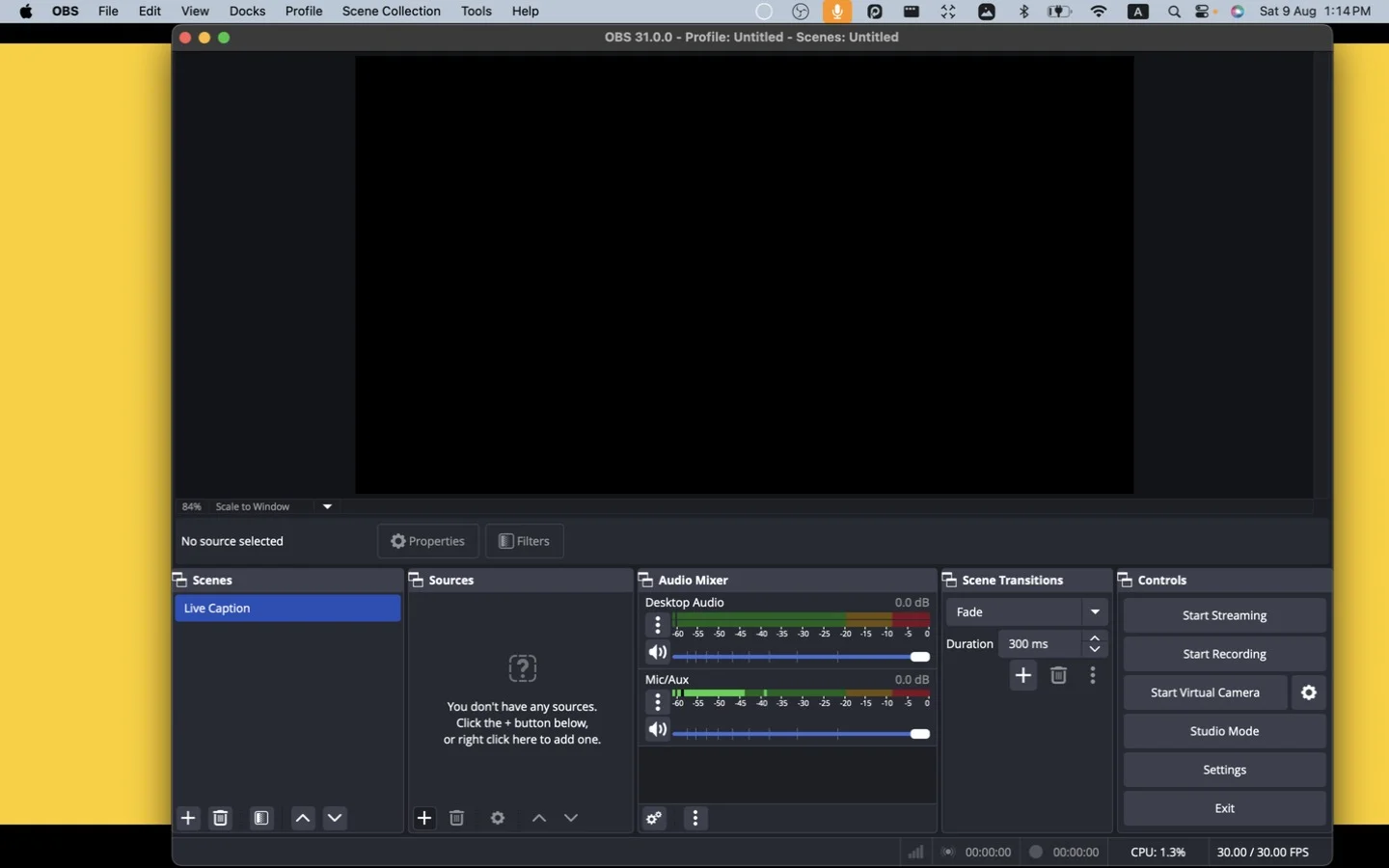
Step 3: Rename the scene and add a source in OBS
Rename the item in OBS Scenes to Live Caption. Click Add in OBS Sources.
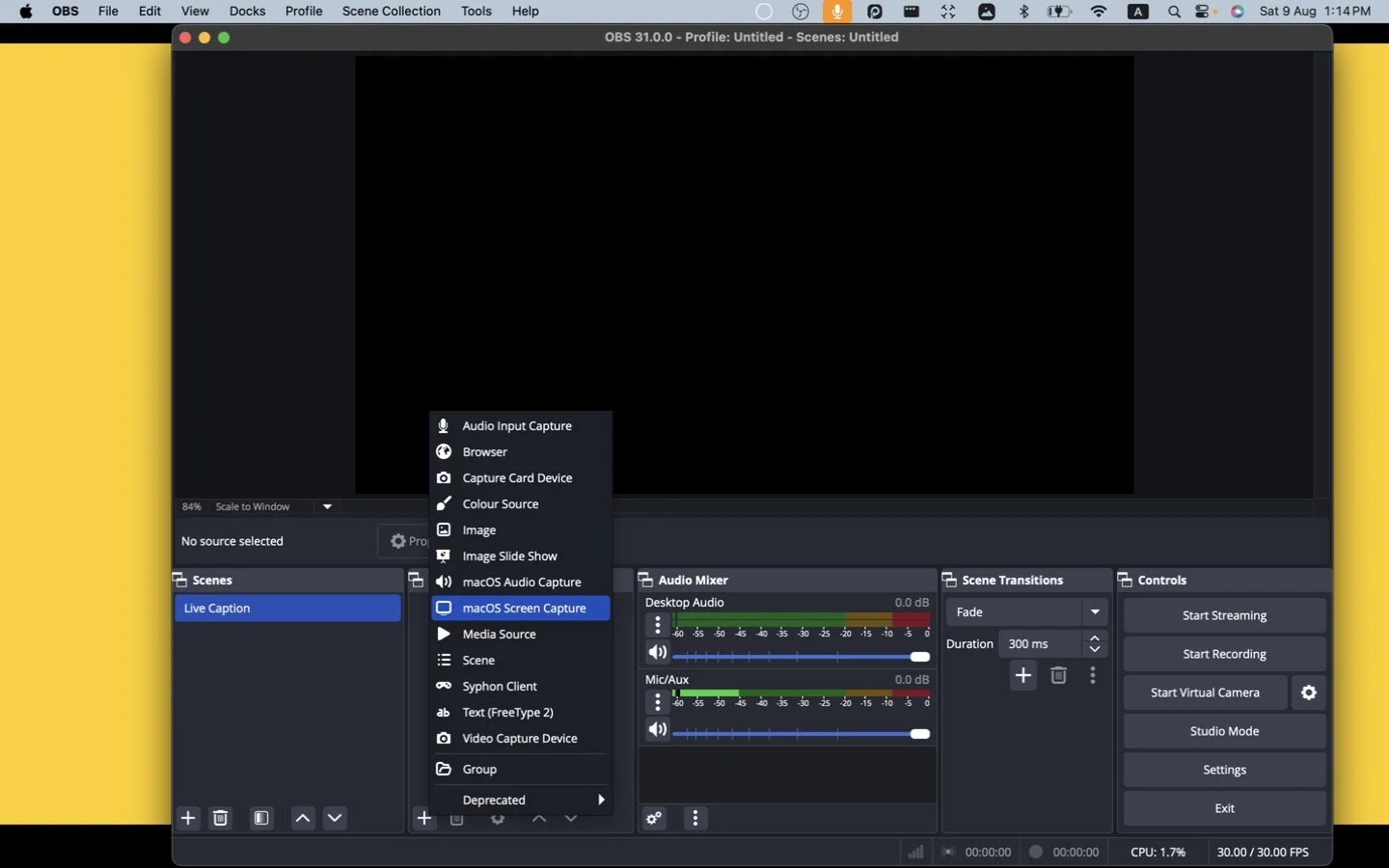
Step 4: Click “macOS Screen Capture”
For Windows, use the corresponding alternative.
Step 5: Change Name to “PPT” and click “OK”
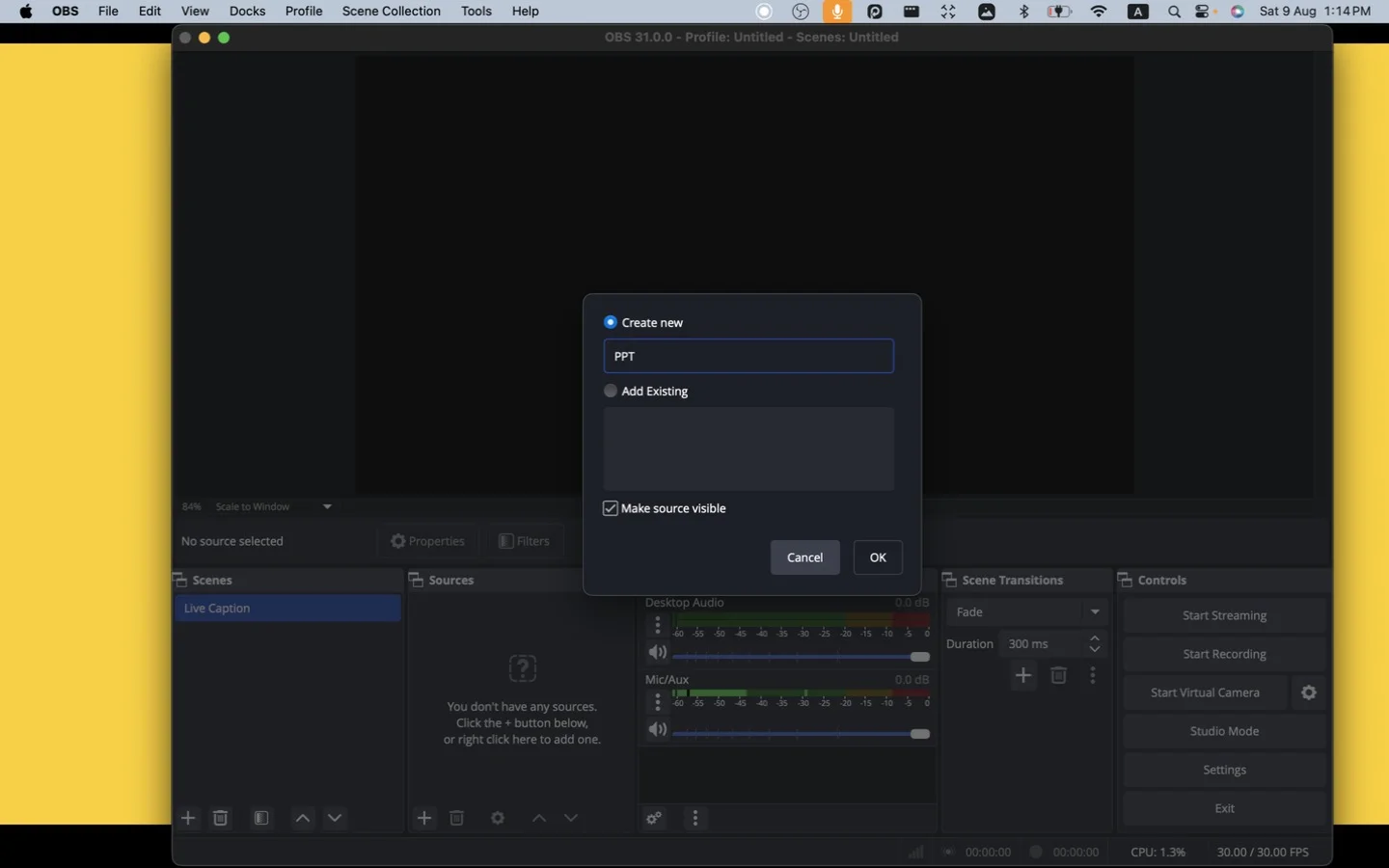
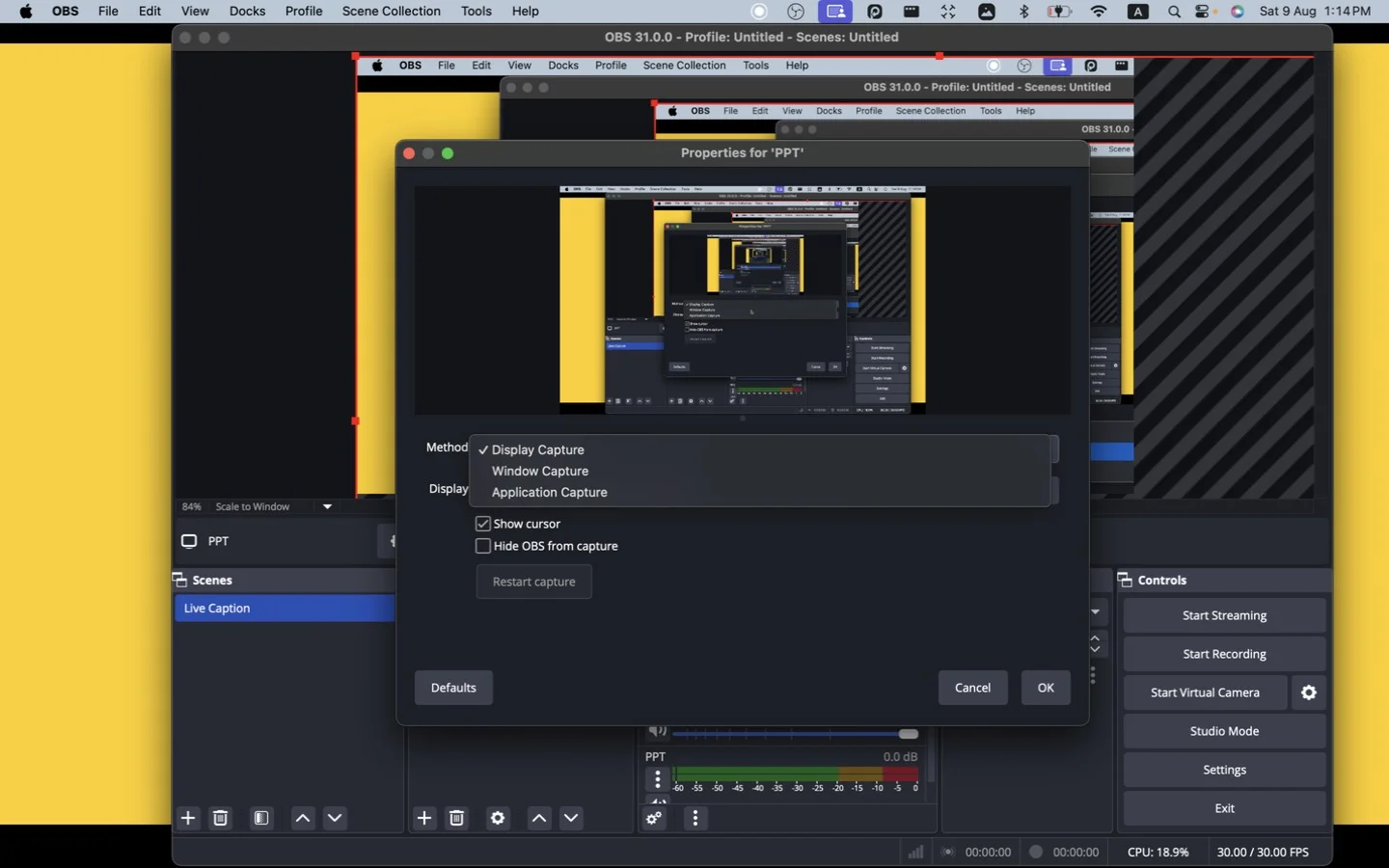
Step 6: Click “Window Capture”
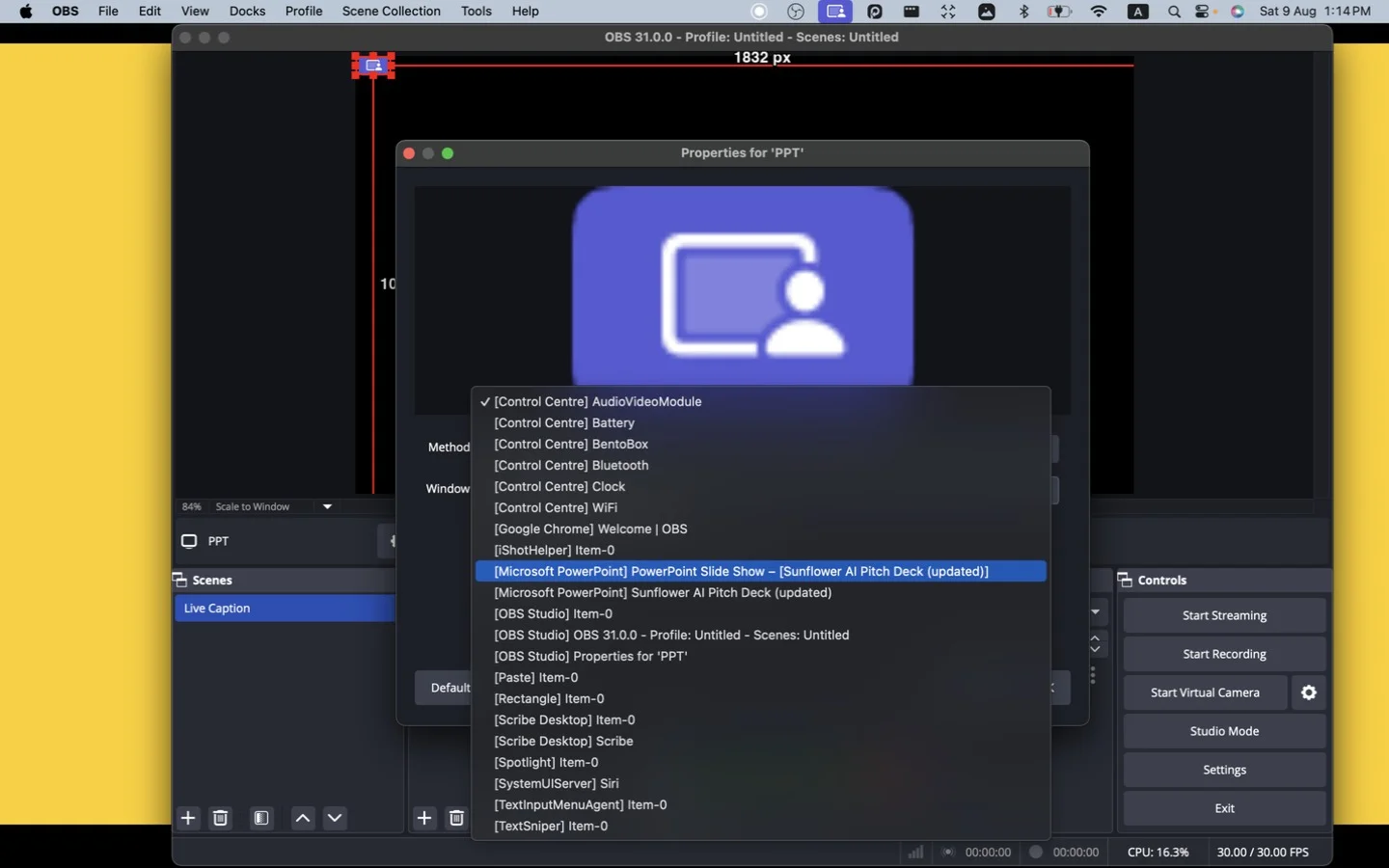
Step 7: Pick the PowerPoint slide-show window
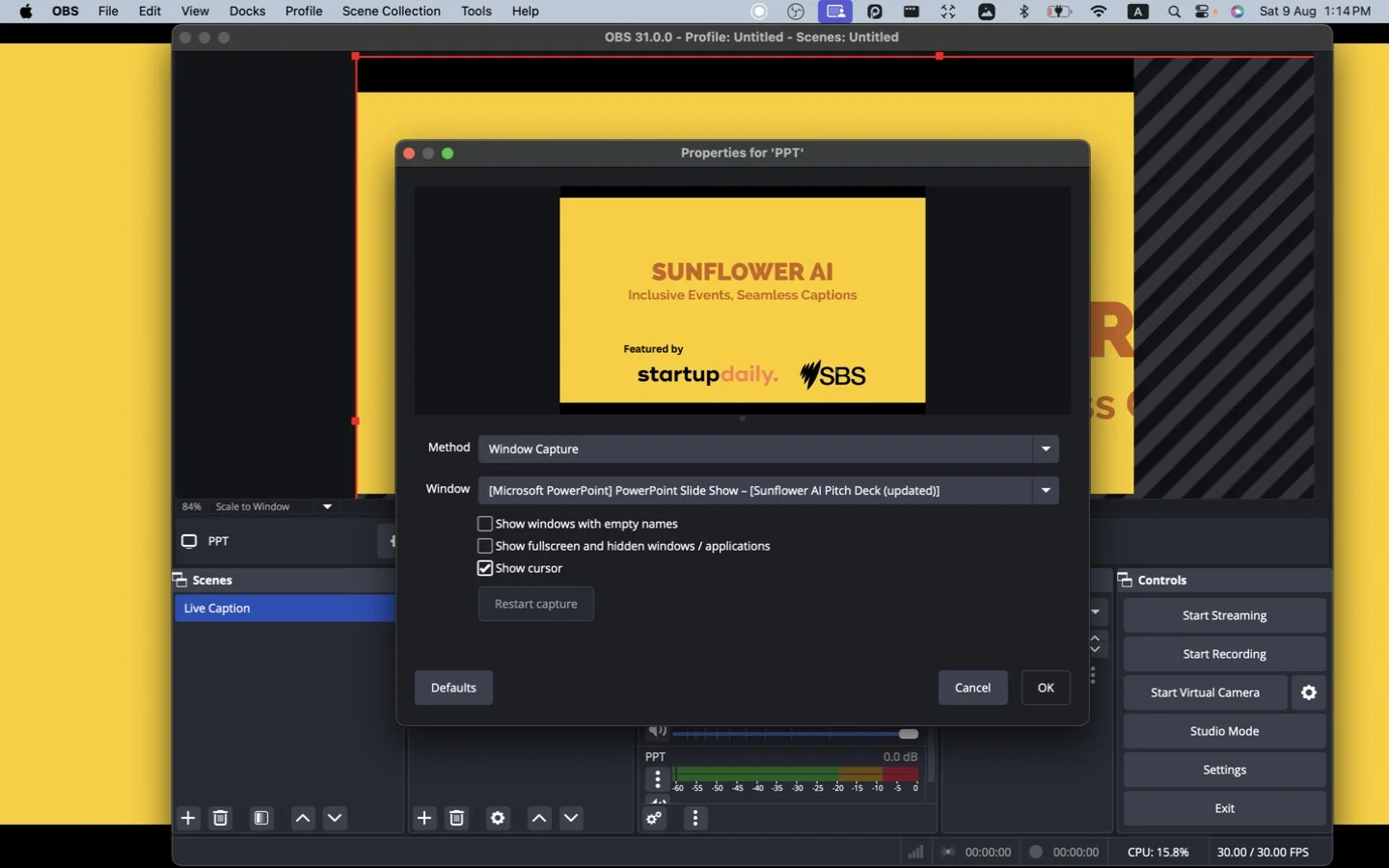
Click [Microsoft PowerPoint] PowerPoint Slide Show – [Your Slide Title].
Step 8: Click “OK”
Step 9: Click “Add” in OBS Sources again
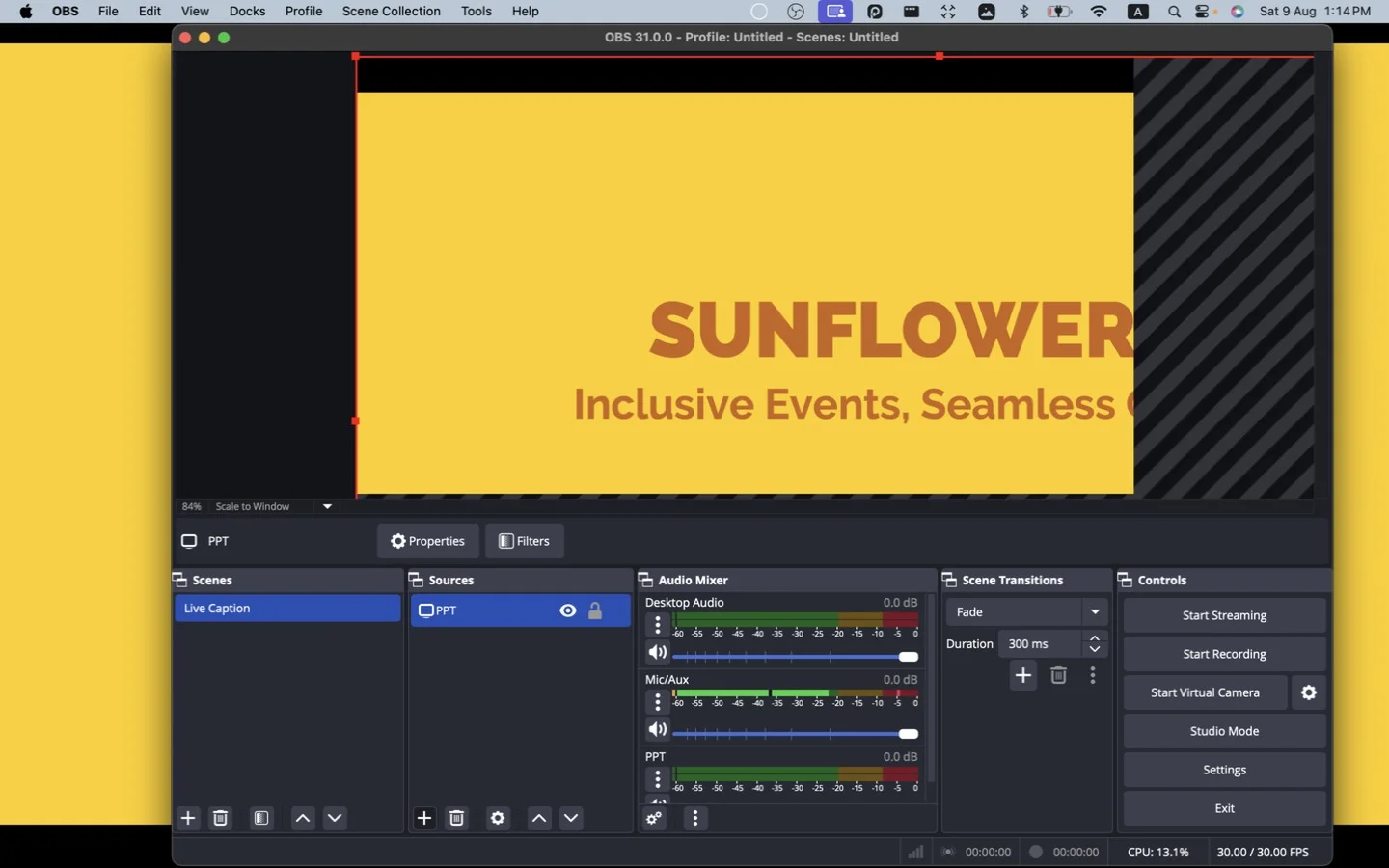
Step 10: Click “Browser”
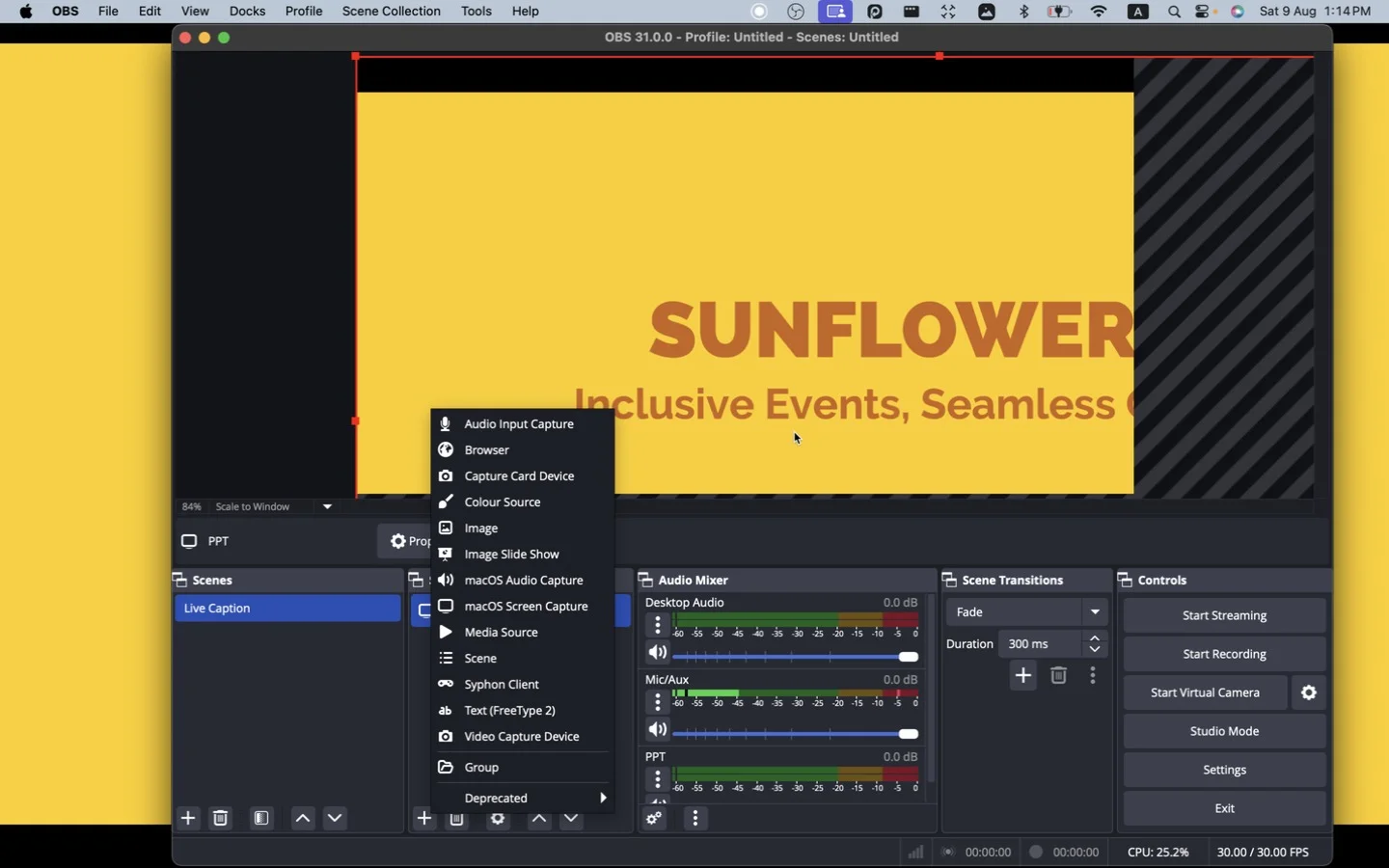
Step 11: Delete the default URL
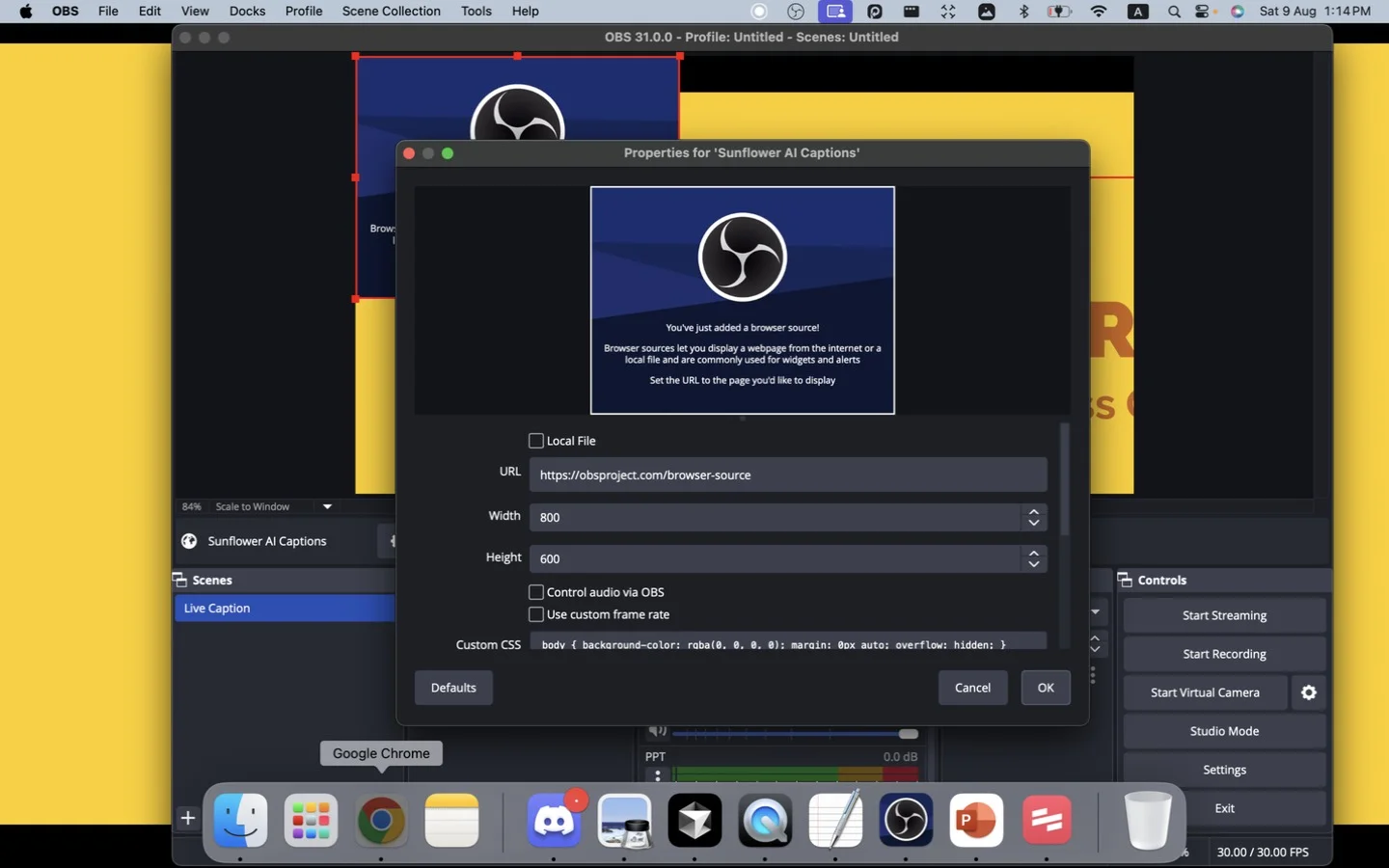
Step 12: Click “Enter Room” in Sunflower AI
Go to your Sunflower AI web app and click Enter Room.
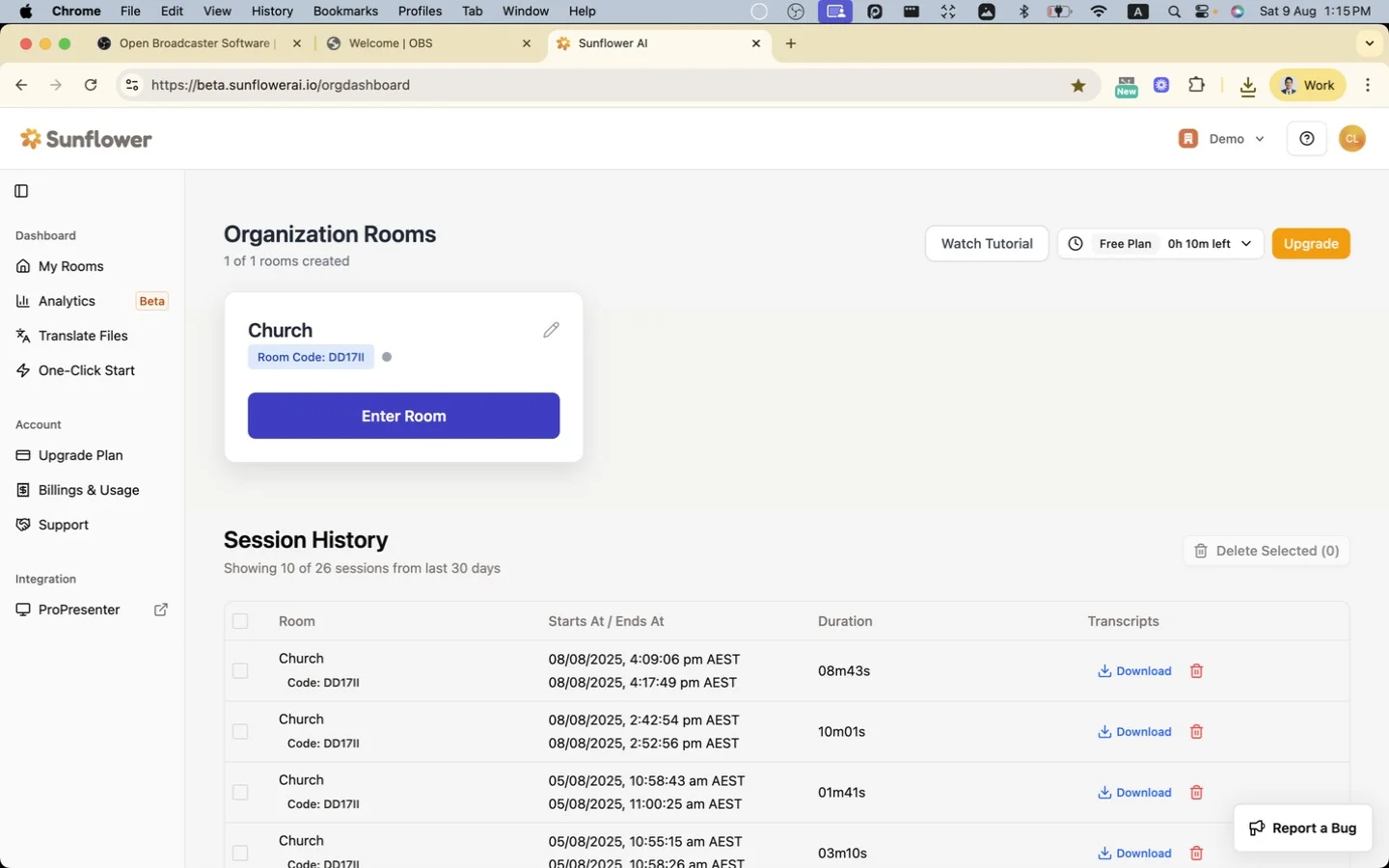
Step 13: Click “Start Session”
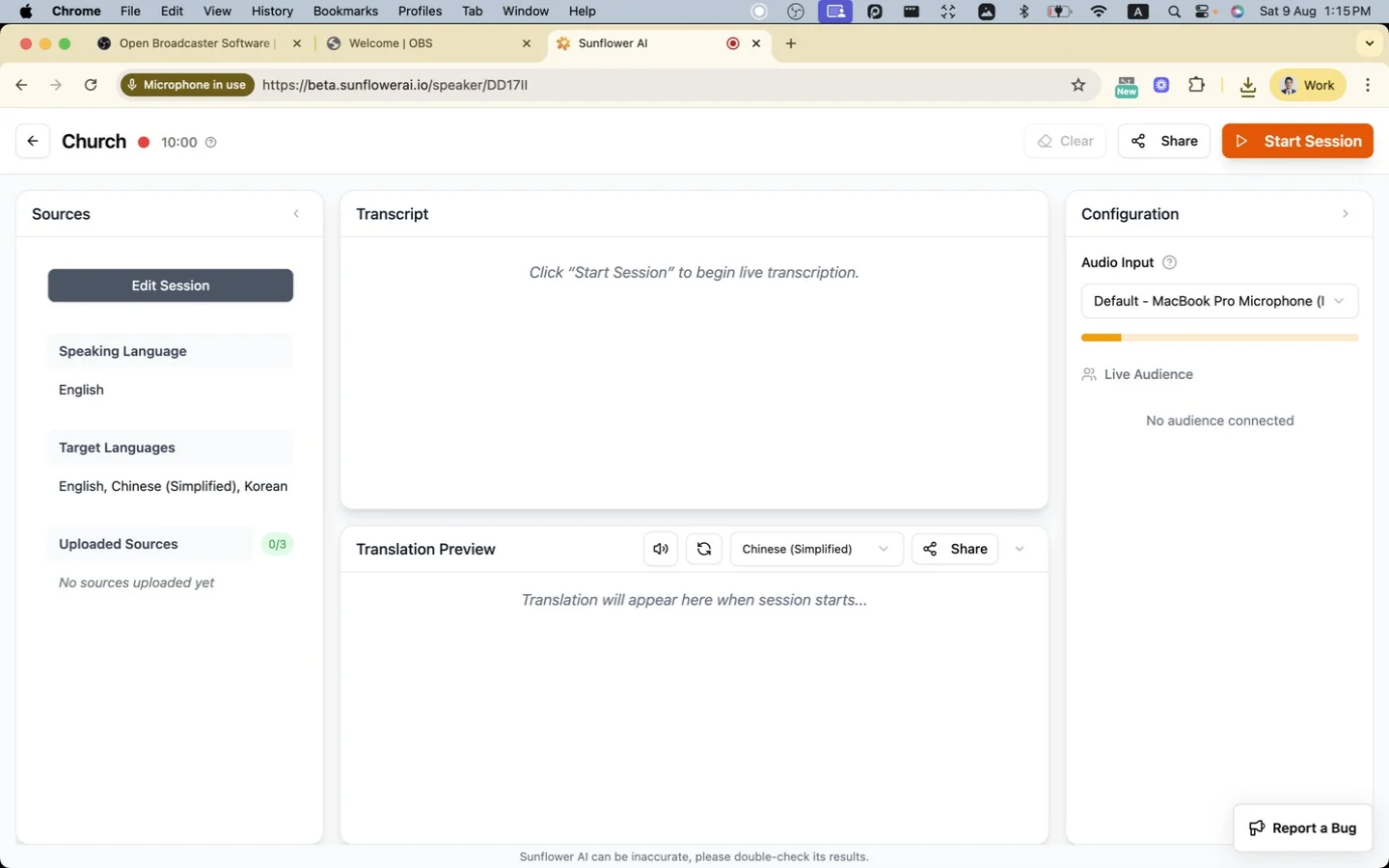
Step 14: Click “Share”
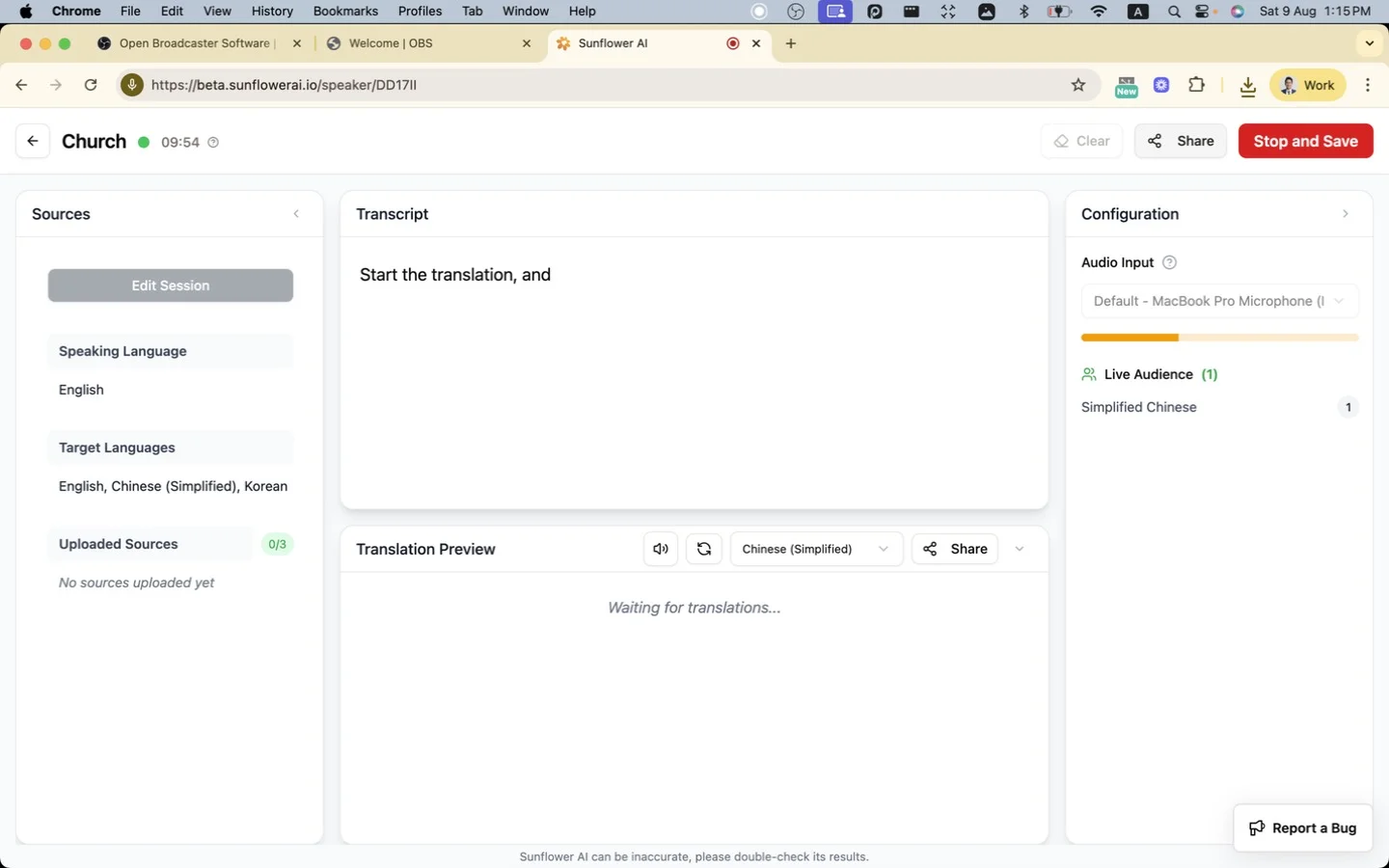
Step 15: Click “Caption View”
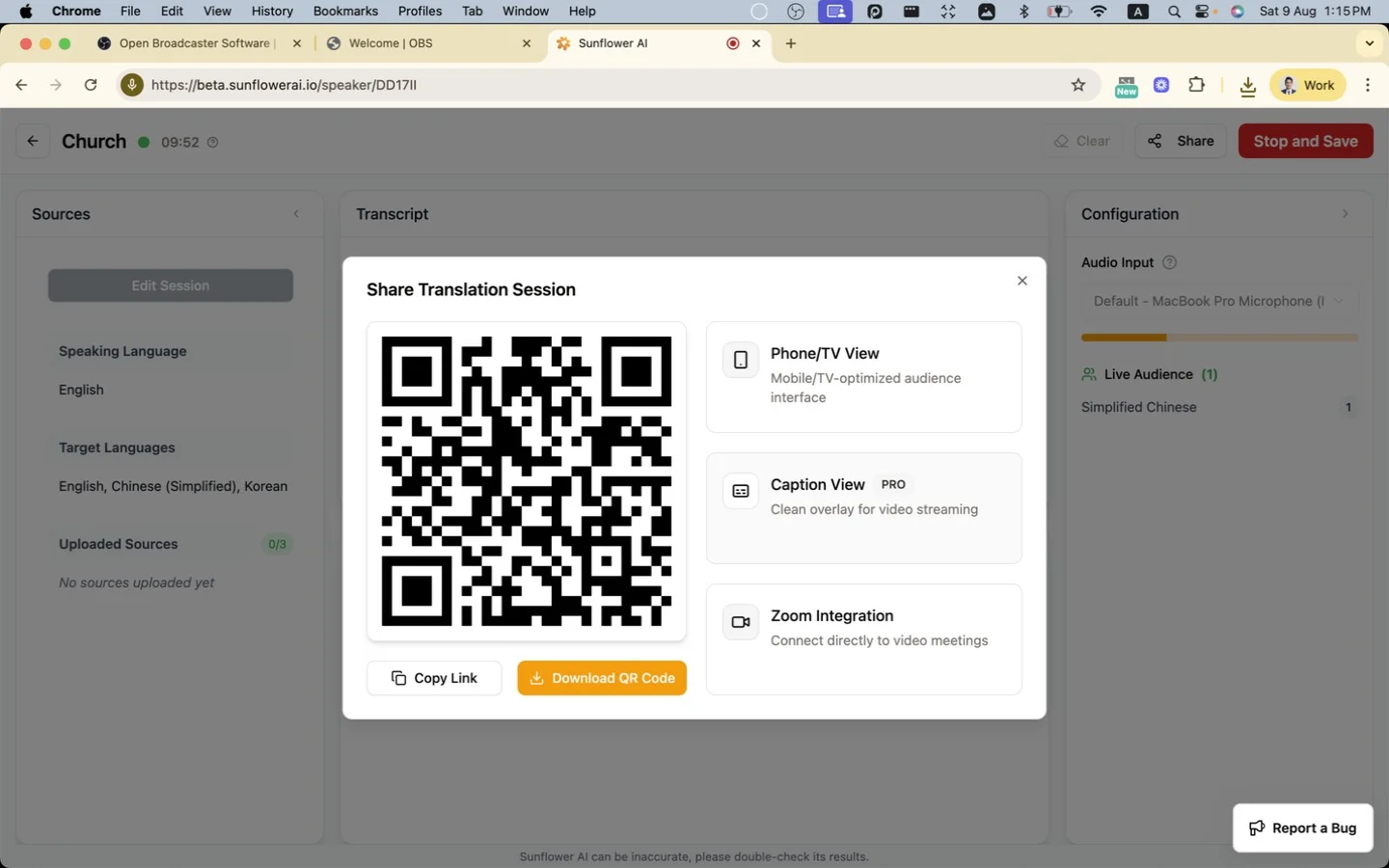
Step 16: Select the language for captions
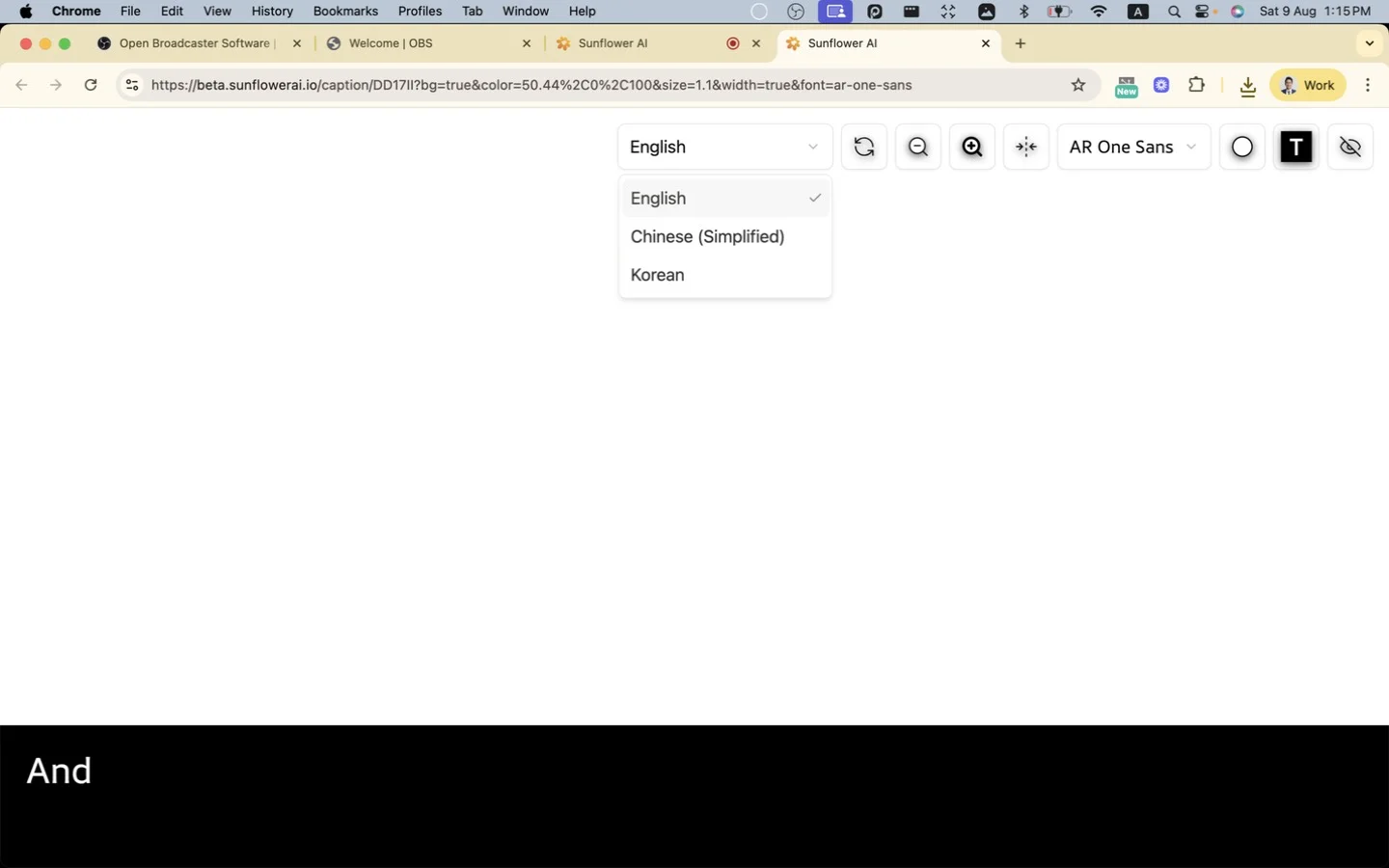
Step 17: Copy URL
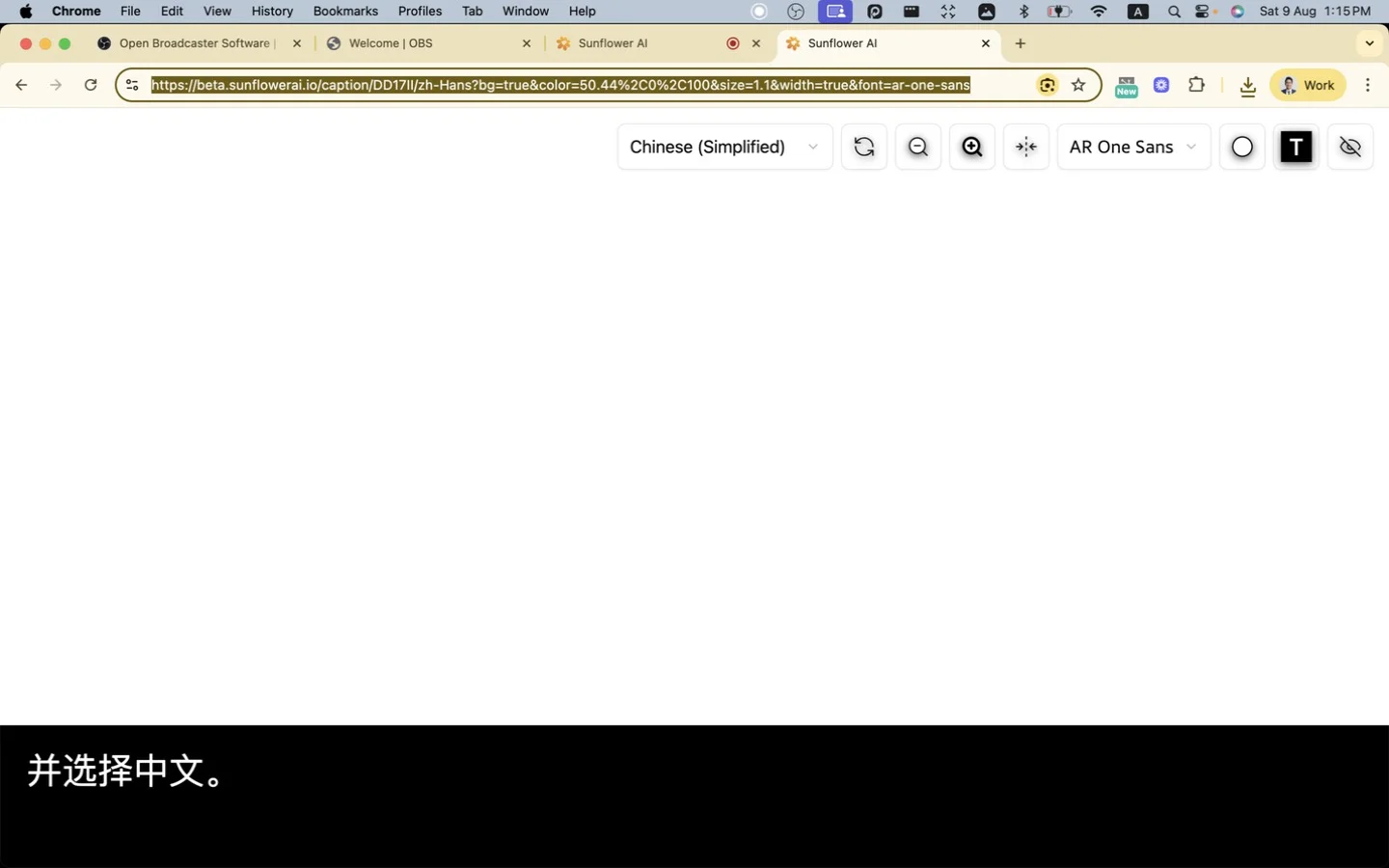
Step 18: Paste URL into OBS
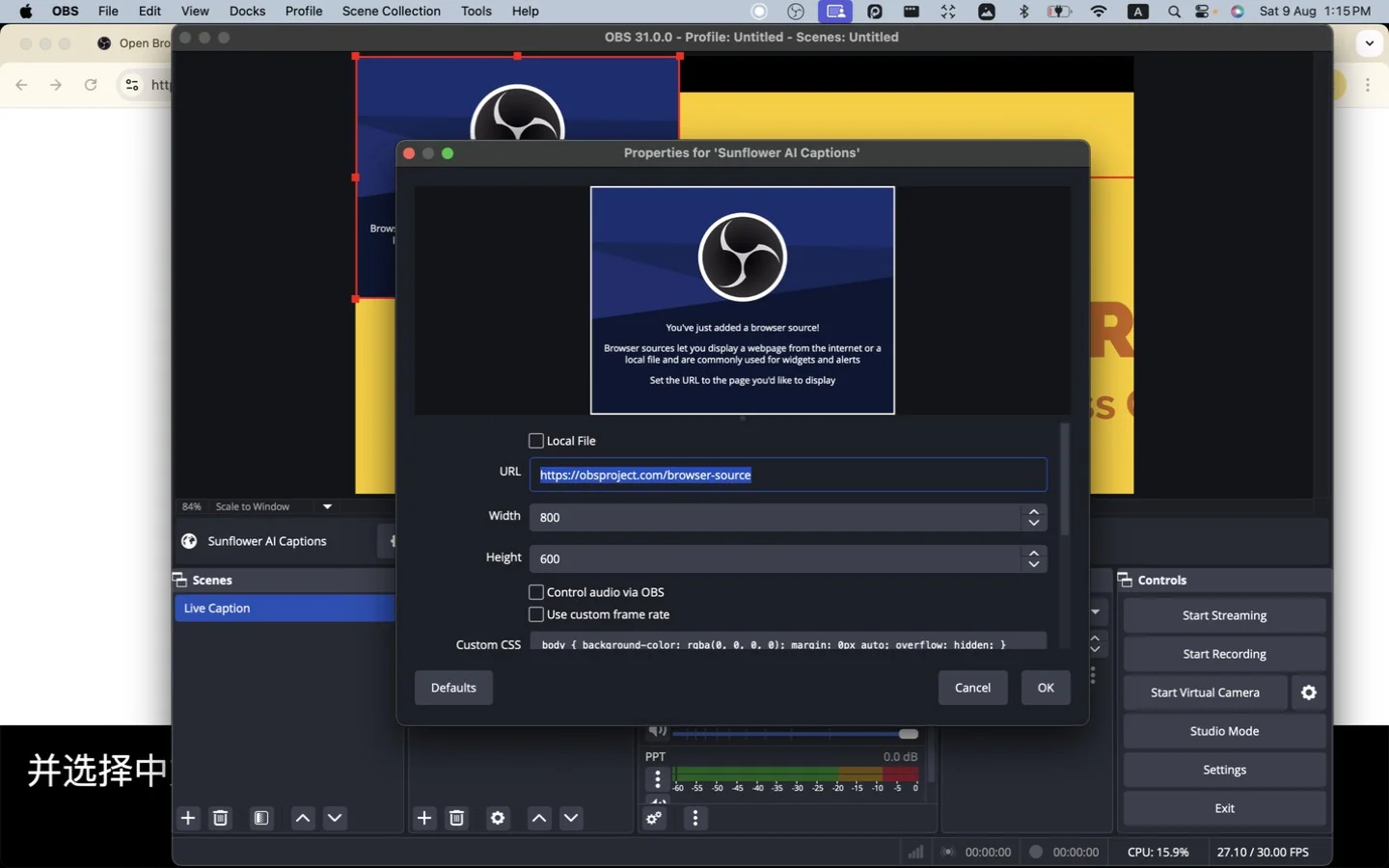
Step 19: Click “OK”
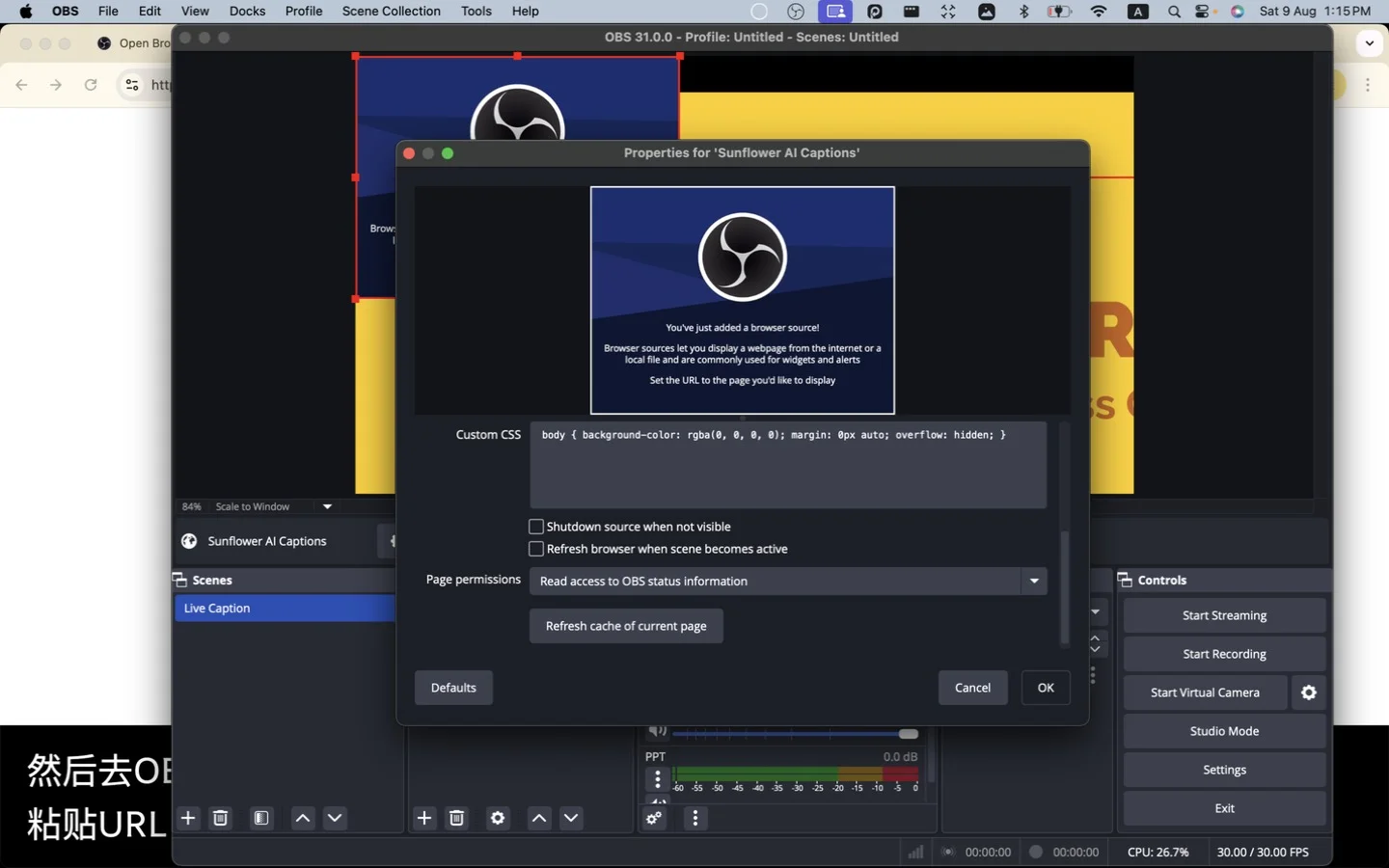
Step 20: Adjust size and position of the two sources
Resize and reposition the PPT and Sunflower AI Captions sources.
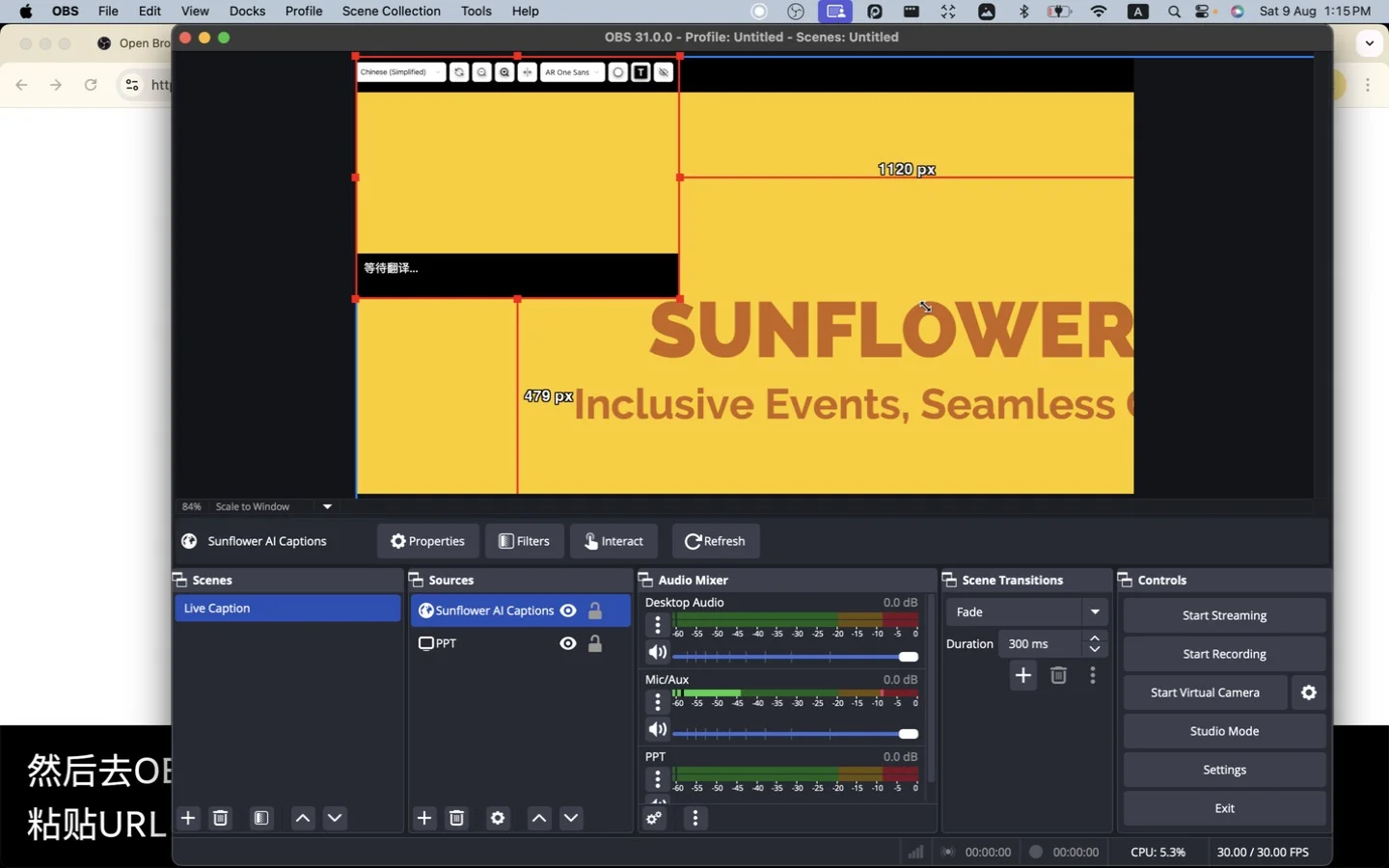
Step 21: Open “Full-screen Projector”
I put captions below PPT so they don’t block slide content. But if you leave dedicated empty space in the lower third of PPT, you can overlay the captions source onto the slide source in OBS. Once the adjustment is done, right-click Live Caption in Scenes and click Full-screen Projector (Scene).
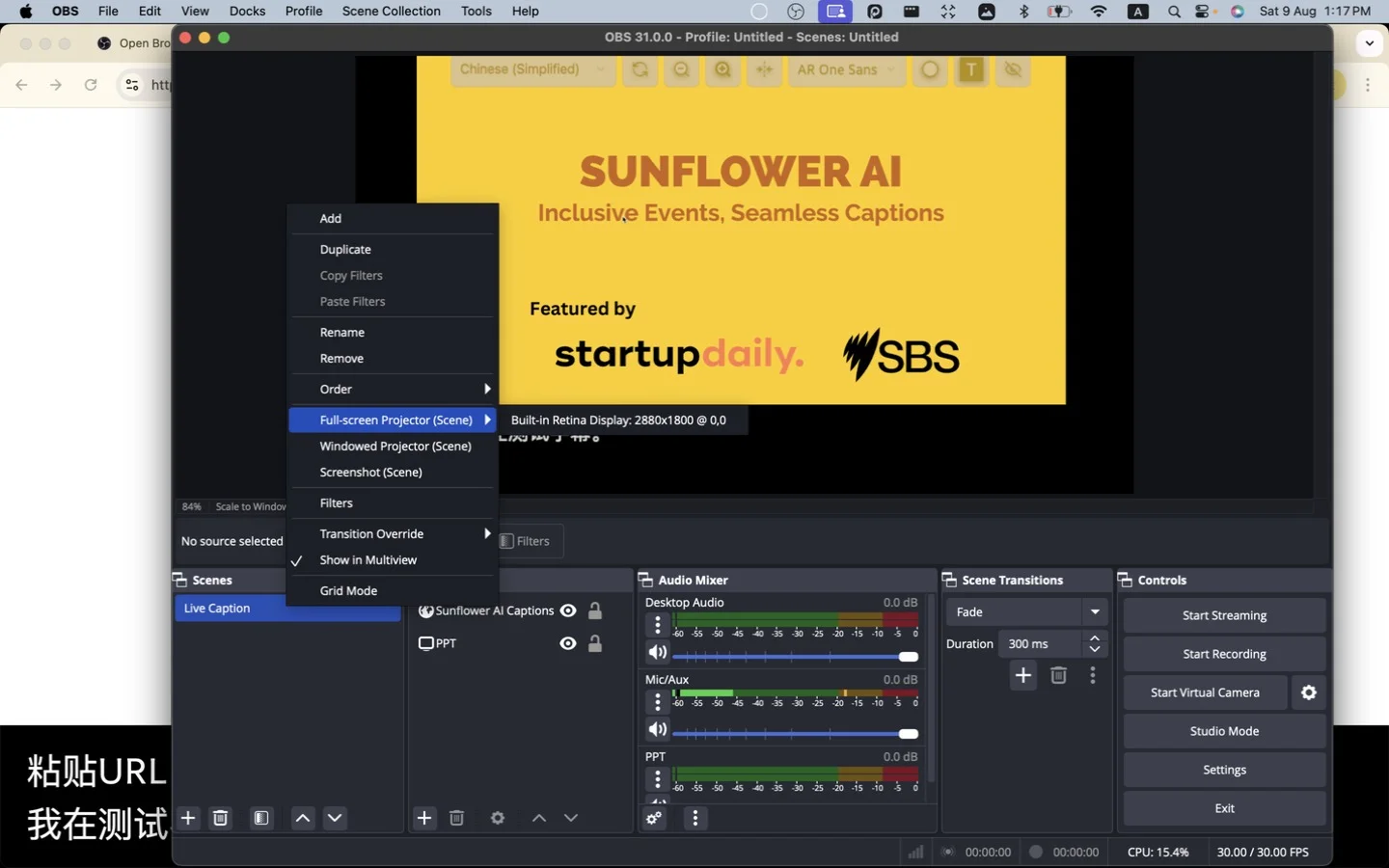
Step 22: Pick the output screen
Click the screen you want to output the combined sources of captions and PPT.
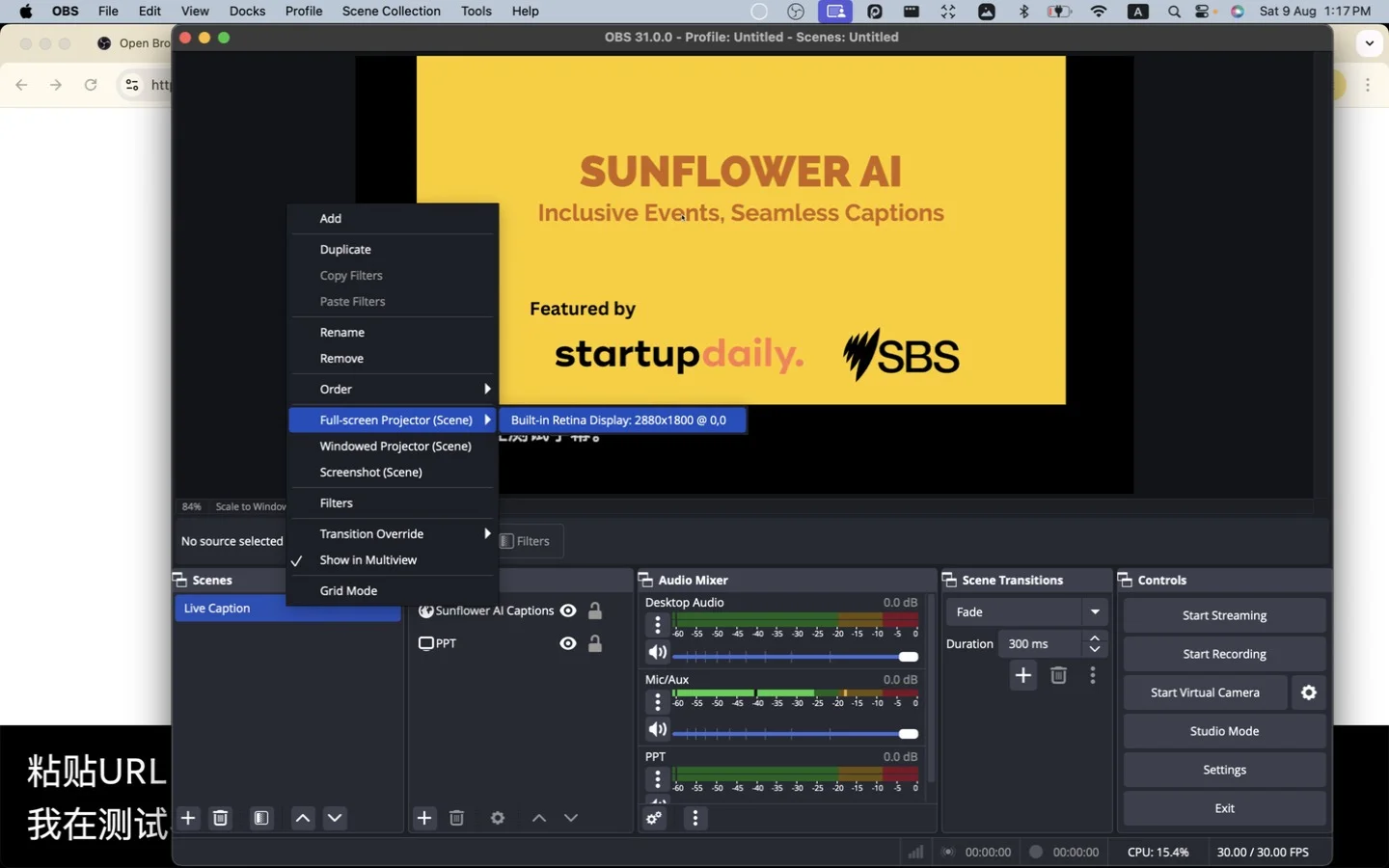
Step 23: You’re live
The screen you selected will show PPT with overlaid captions. You can control slides on your computer screen.

Need a hand?
Contact support@sunflowerai.io if you need help. You can also join our Facebook group for feature requests and updates.